

Apps can also be managed within the spaces on the Space Overview page.
To access a space, click on Manage Spaces and then select a specific space.
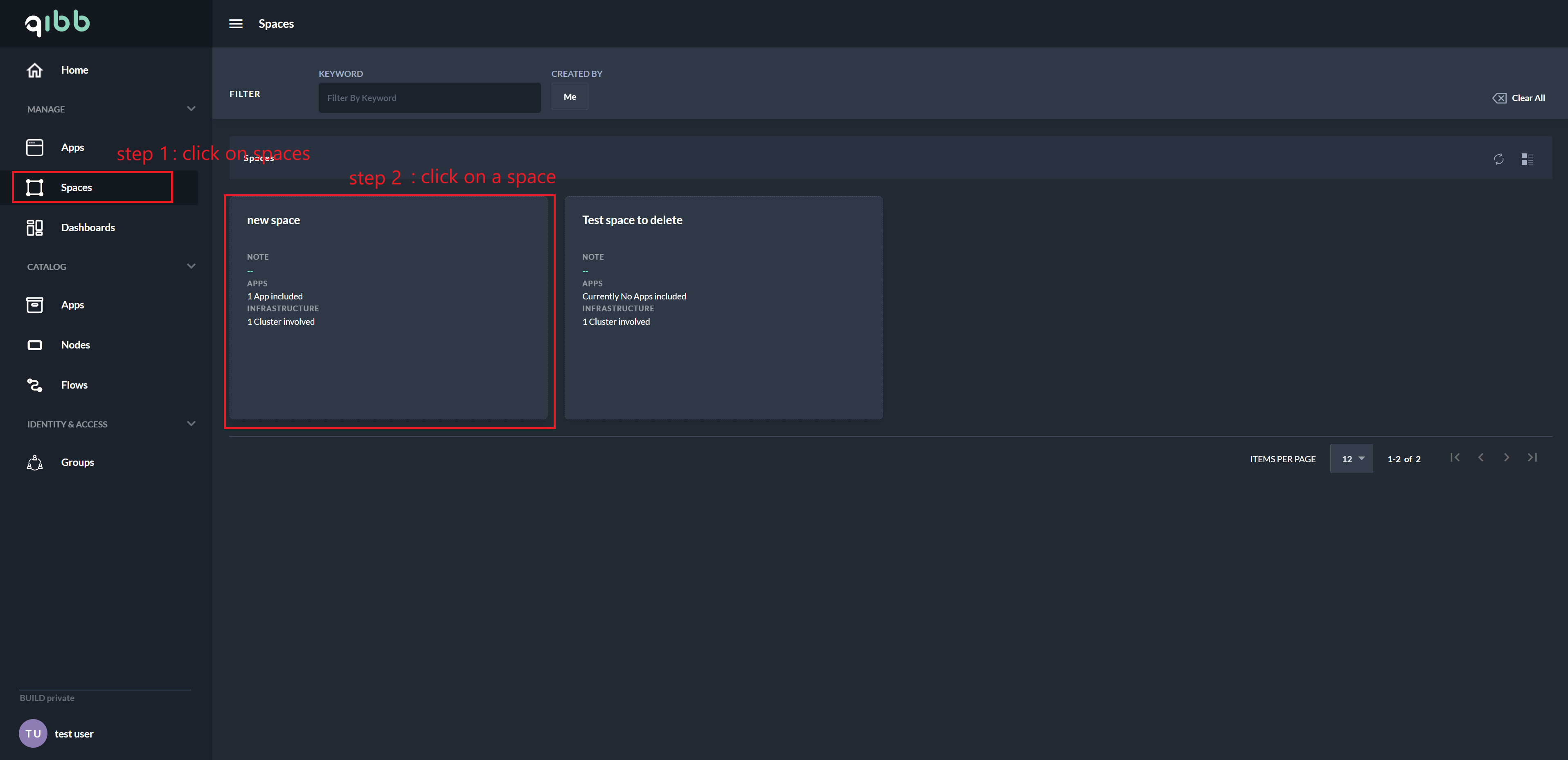
The Space Overview without any apps in the space can be seen in Figure 2.
To add a new app, click the New App Tile located in the center of the screen or use the Add App button found in the app detail panel.
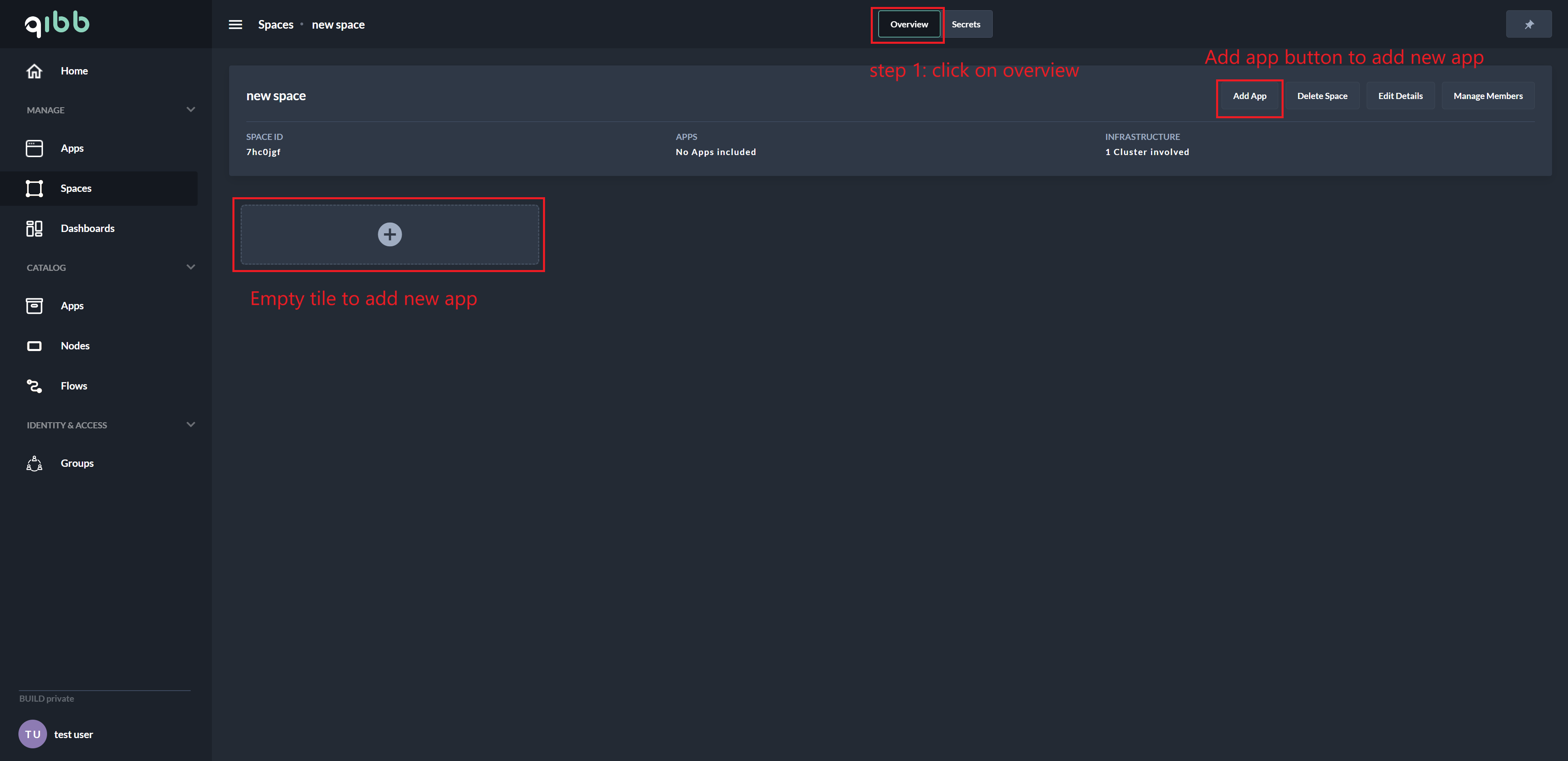
Since there are currently no apps in the space, the space app grid is empty, with only the New App Tile in the top left corner of the grid. When apps are present in the space, the Space Overview will display them. This is illustrated in Figure 3.
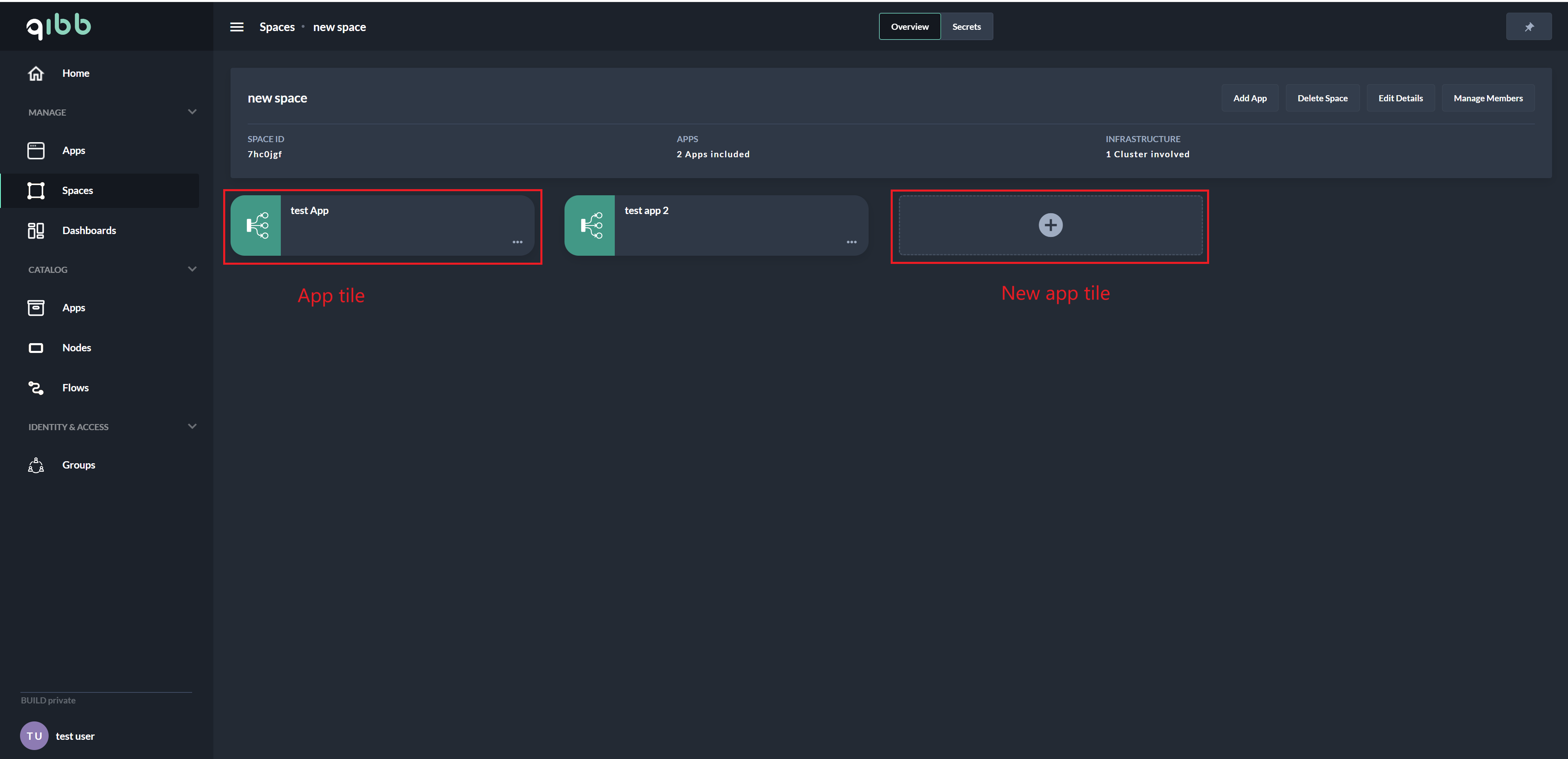
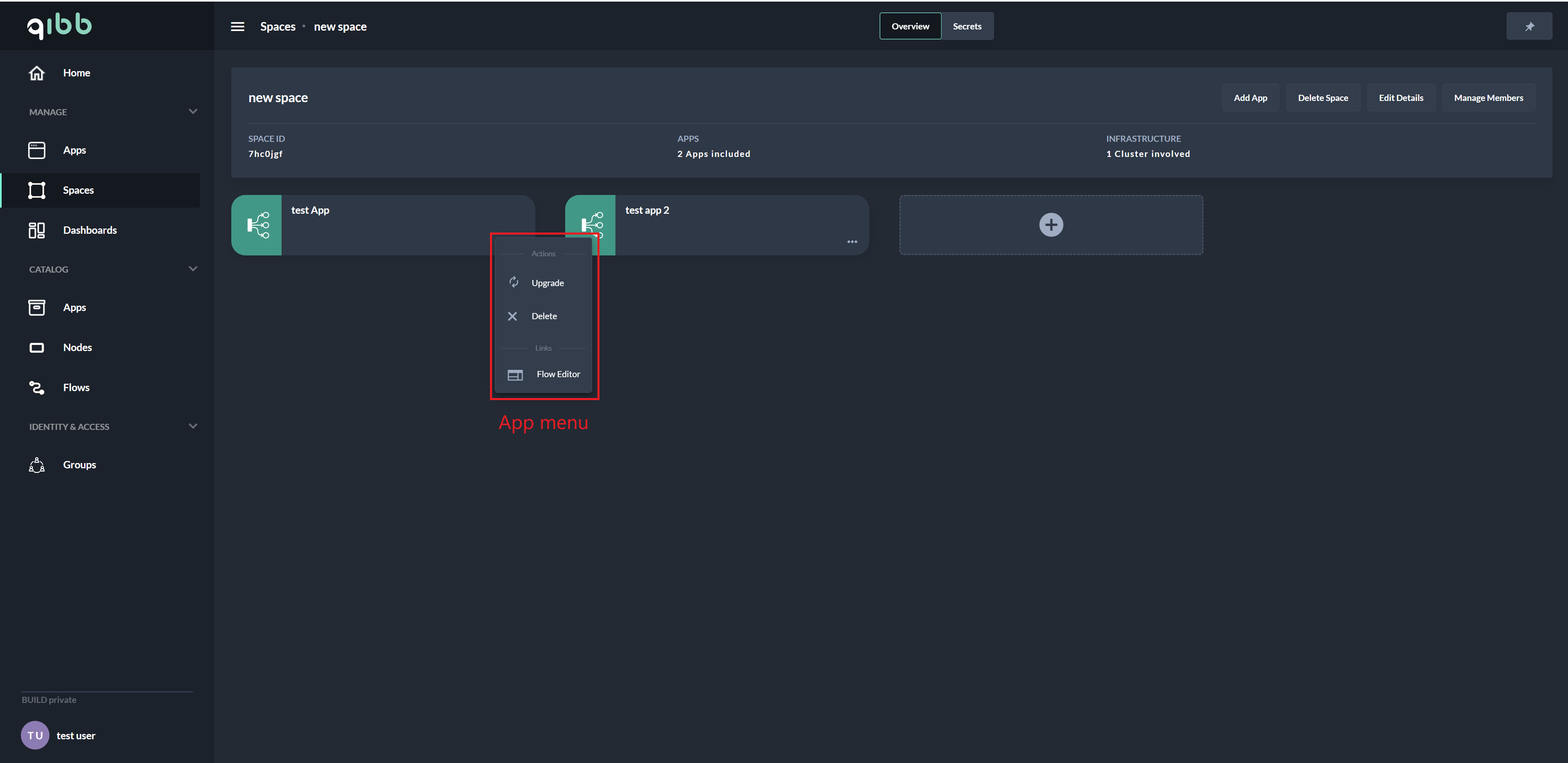
To upgrade, rollback, delete an app, or access the flow editor, open the menu by clicking on the three dots located in the bottom right corner of the app tile.
Adding an App
To add an app, follow the steps demonstrated in the screen recording below:
Upgrading an App
The process of upgrading an app is shown in the following screen recording:
Rolling Back an App
To rollback an app to a previous version, follow the steps shown in this recording:
Deleting an App
If you need to delete an app, follow the process illustrated in this recording: