Standard Premium ULTIMATE
qibb’s Flow Editor integrates Git version control directly into your project workspace, allowing you to track changes to your flows and collaborate with others using a remote Git repository. One of the key settings available in Settings › Git Config is the Workflow Mode, which determines how and when commits are made from the Flow Editor.
What Is Git Workflow Mode?
The Git Workflow Mode controls how changes you make to your flows are committed to the local Git repository for your project. You can choose between Manual and Automatic Modes.
🟢 Automatic Mode
|
🔵 Manual Mode
|
|---|---|
|
|
|
Use Automatic Mode when:
|
Use Manual Mode when:
|
Where to Configure
-
Open the Flow Editor of an app.
-
In the top-right corner, click on the menu icon.
-
Click on Settings.
-
Select Git Config.
-
Locate the Workflow Mode option.
-
Choose between Automatic or Manual based on your preferred workflow.
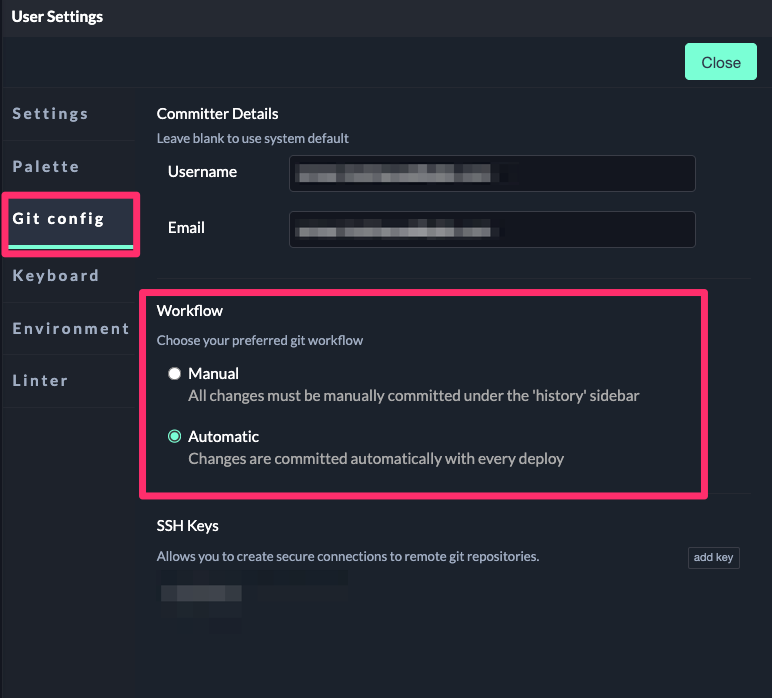
➡️ After switching modes, subsequent changes will follow the selected commit behavior until it is changed again.
This configuration is a personal user setting per app.
-
It applies only to you, while other contributors can have different user settings on the same app.
-
This setting is app-specific, allowing you to have different user settings across apps.
Best Practices
-
Automatic Mode is ideal for quick edits or solo workflows where commit detail isn’t critical.
-
Manual Mode fits best for team environments, structured pull-requests, and code review processes.
-
Regardless of mode, ensure your Git repository is properly connected and configured with username/email under Git settings so commits are correctly attributed.
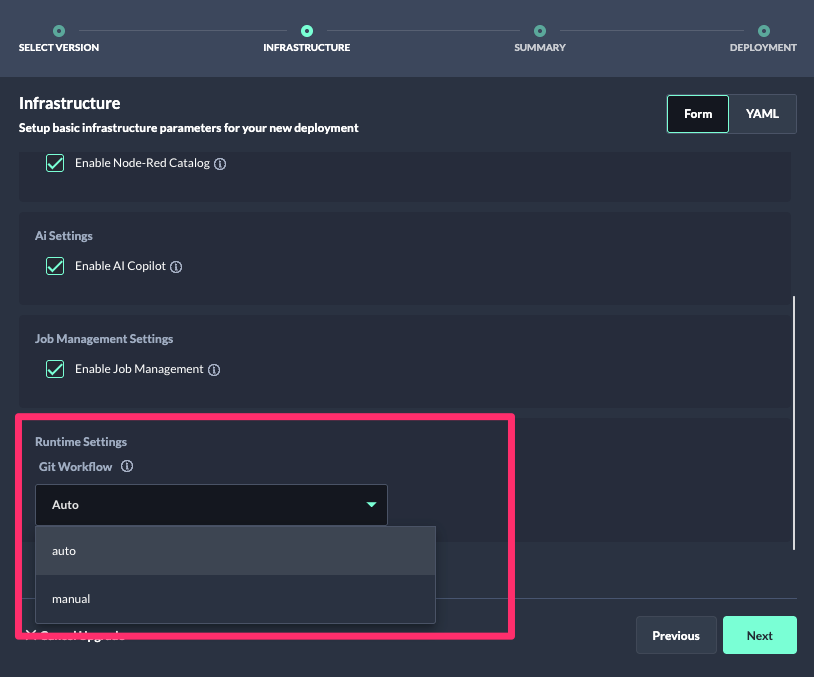
Tip: Set the initial default workflow mode for users
During app deployments or upgrades, you can set the default workflow mode for users when they first access the Flow Editor of the app.