

ULTIMATE
You have two possibilities to upgrade an App - upgrading the App from the Meatballs Action Menu, part of every App Card, or Selecting an App and then using the Meatballs Action Menu inside the App Overview.
Upgrading an App from the Meatballs Action Menu, part of the App Card
-
Navigate to the Apps.
-
Click on the Action Menu.
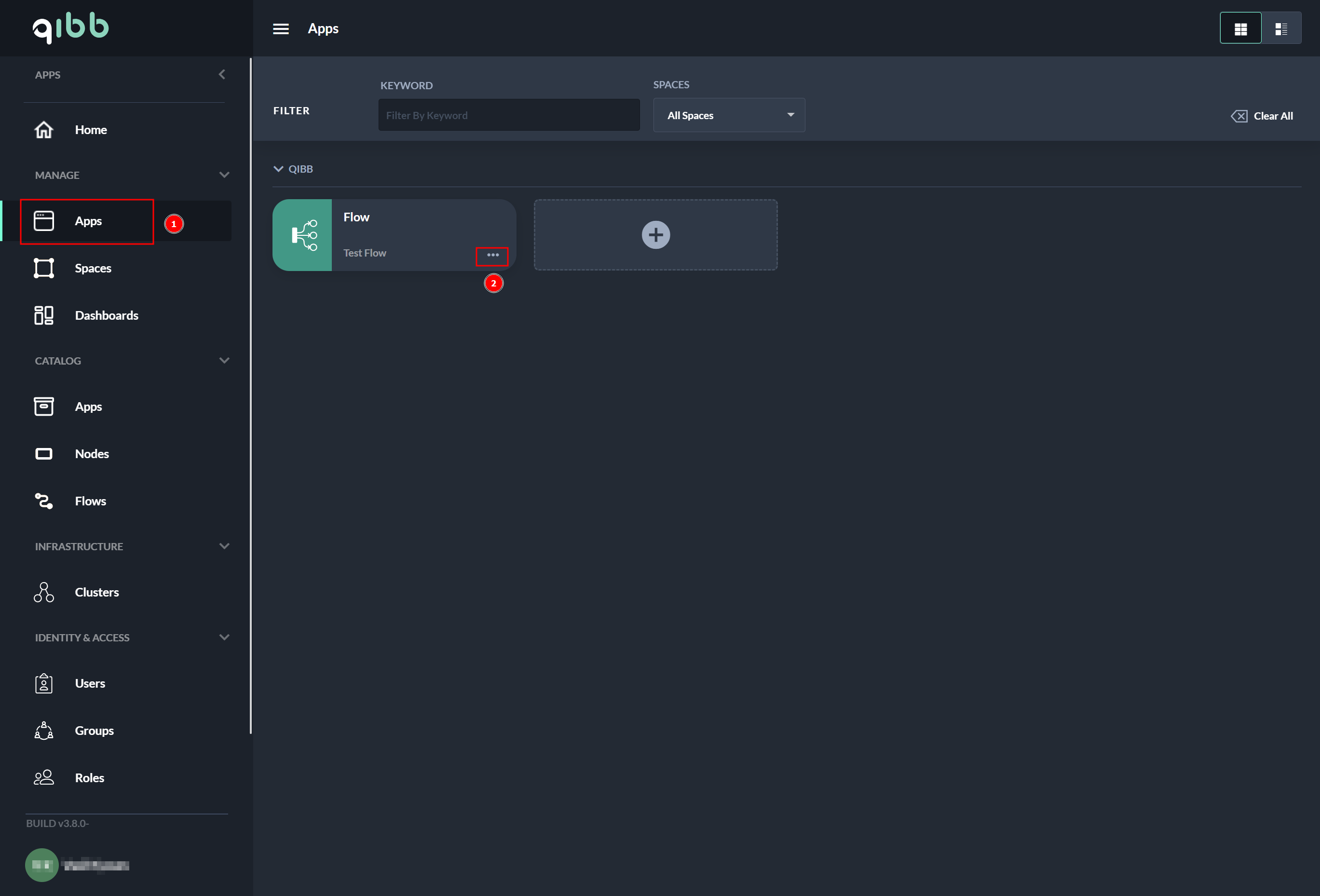
Action Menu, part of the App Card
-
Select Upgrade from the Action Menu.
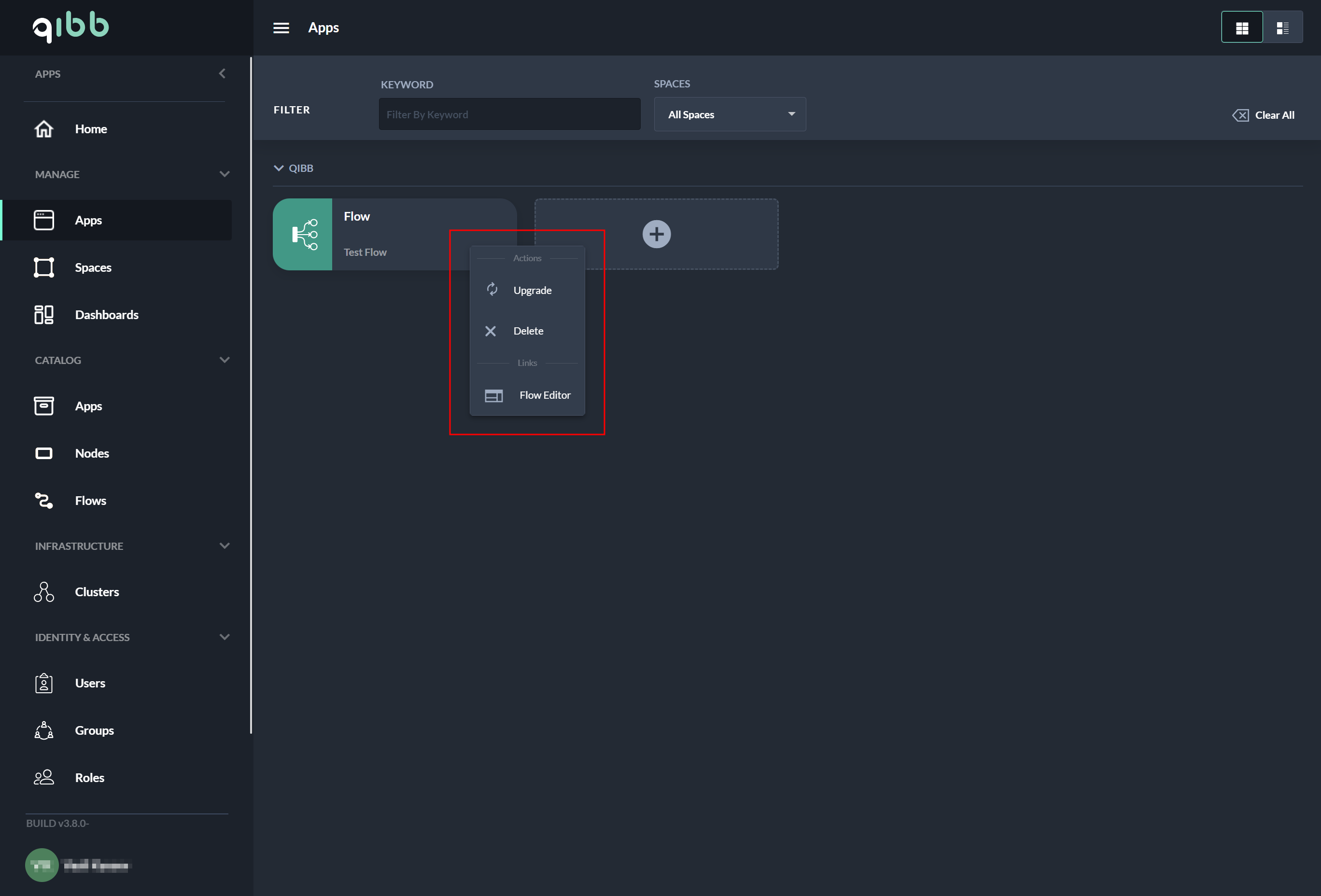
App Card Action Menu
Upgrading an App from the App Overview
-
Navigate to the Apps.
-
Select the App that should be upgraded.
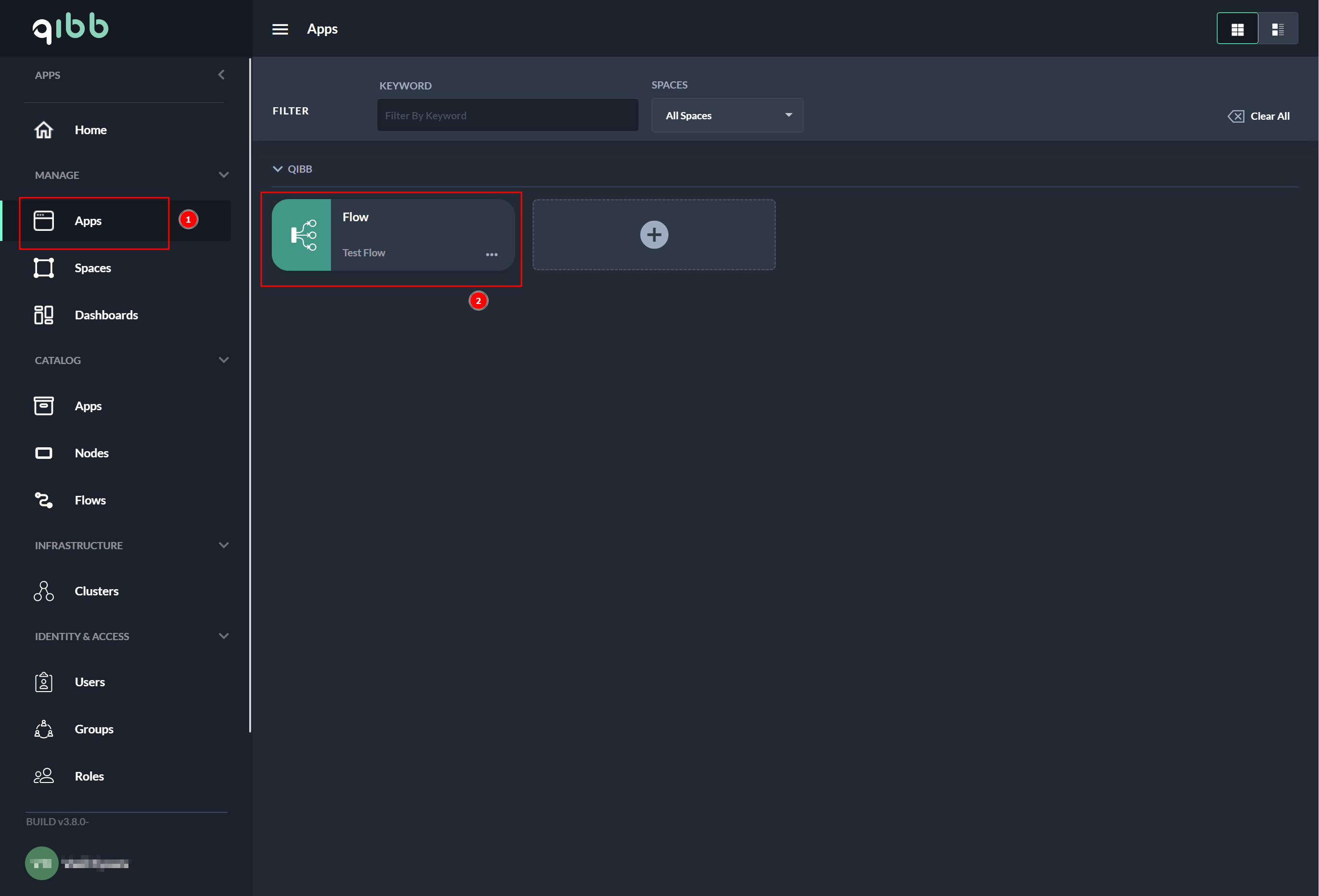
-
Select the Meatballs Action Manu.
-
The upgrade process is started by selecting Upgrade.
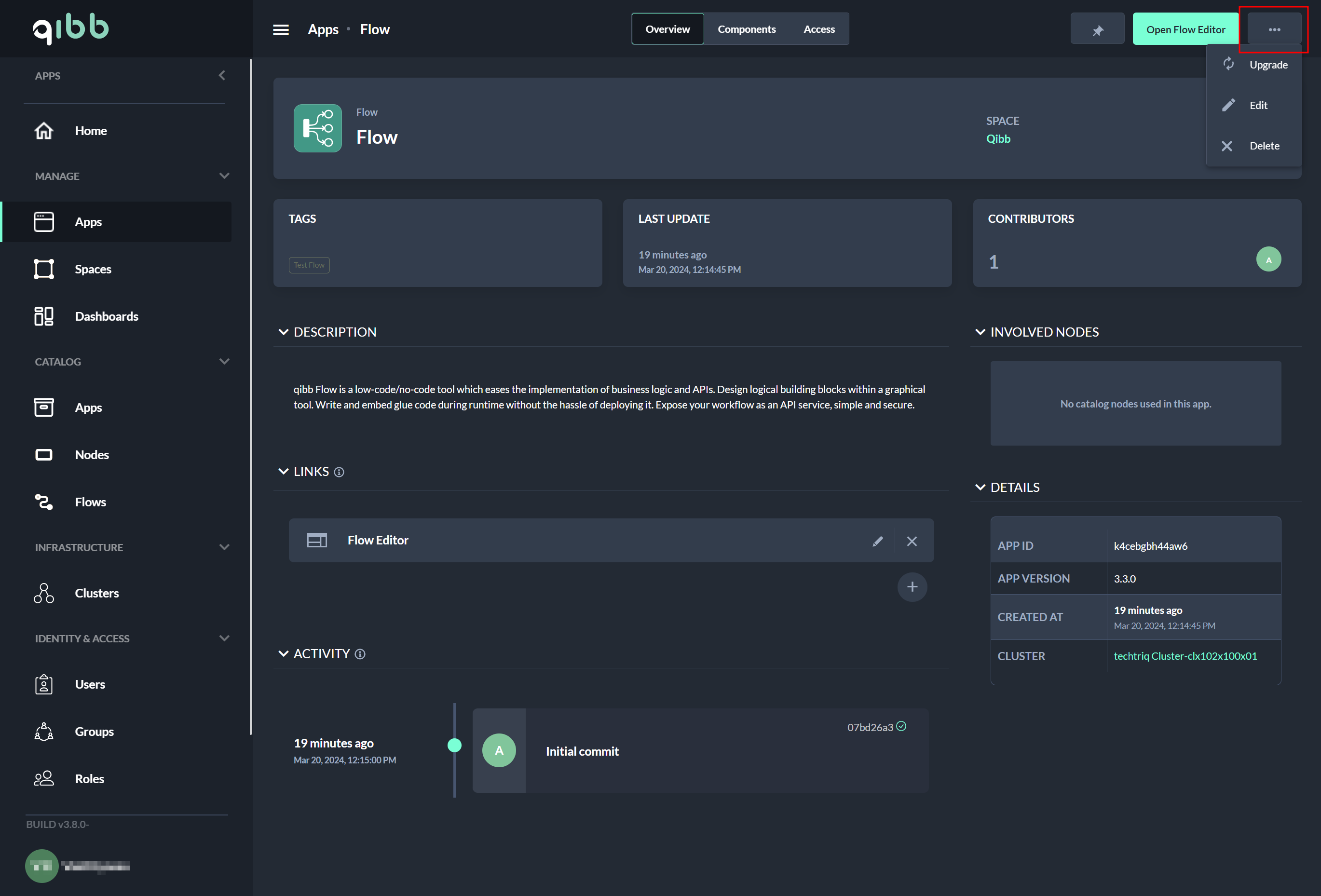
Common steps
-
Follow the upgrade dialog to update the deployment version and settings.
-
Select the version to which you want to upgrade your deployment.
-
Set up basic infrastructure parameters for your new deployment.
Choose between form and YAML view. -
Review your deployment settings and select “Upgrade” to start the upgrade process.
-
-
The update process may take a few seconds to a few minutes.
-
Press the Go To App button to switch to the application.
-
Select Close to exit the dialog.
-
Next
In the next step, you may be interested in how to delete a deployment.