

The "Exporting and importing dashboard" option is available for users who have editor's rights or are the owner of the dashboard.
Exporting and importing a dashboard simplifies the user to copy the widgets from one dashboard to another.
For this purpose, the user has two options:
-
Copy to clipboard or
-
Download as JSON
Exporting a dashboard
-
Navigate to a dashboard.
-
Select the Meatball Menu in the top right corner.
-
Choose Export from the dropdown.
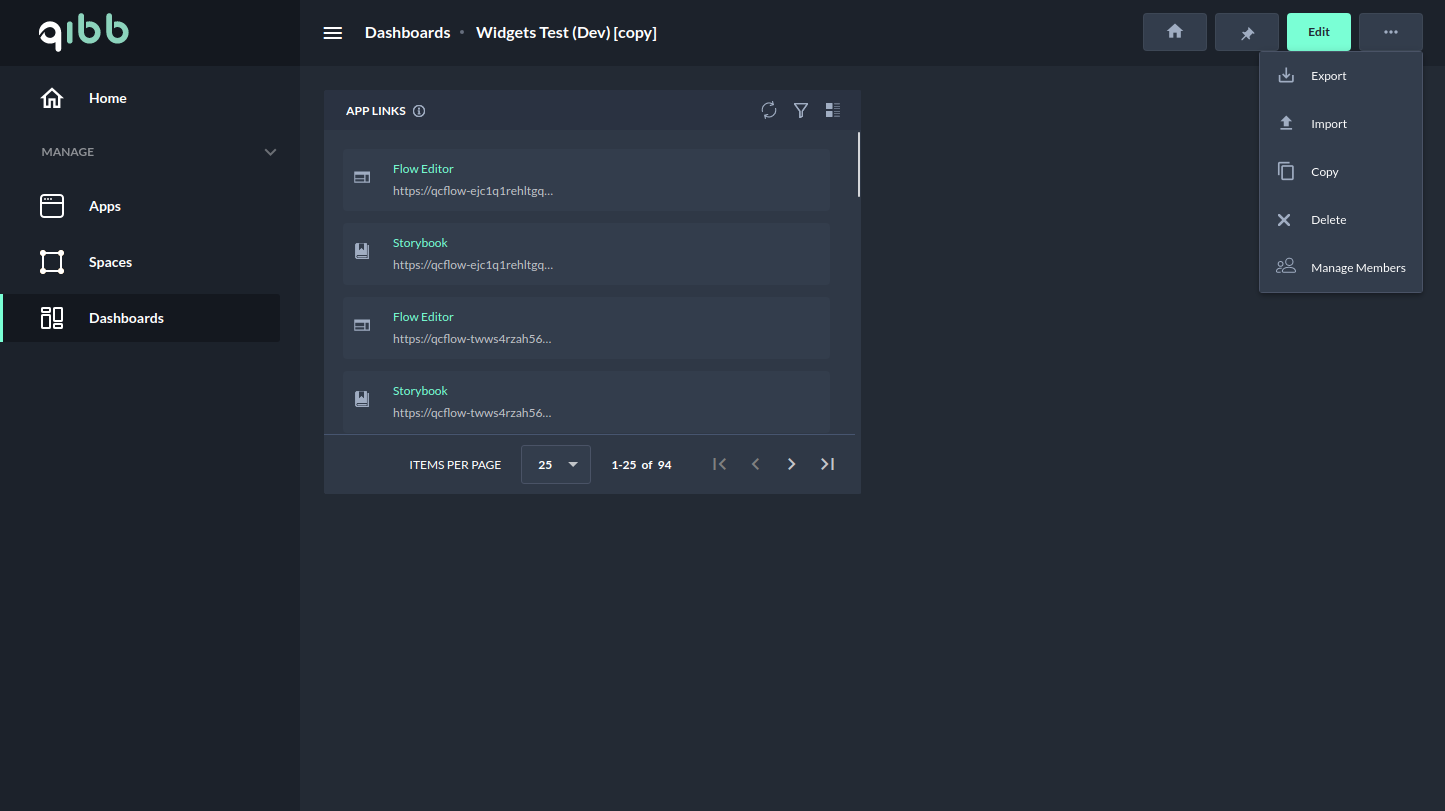
Exporting a dashboard - Meatball Menu
-
Confirm by clicking the Copy to clipboard button.
The json file is copied to the clipboard and can be imported into another dashboard. -
A dashboard can also be downloaded as a JSON file.
After clicking the Download button, a dialog box opens where the user can select the location to download the file.
This JSON file can be easily imported into another dashboard or saved as a backup.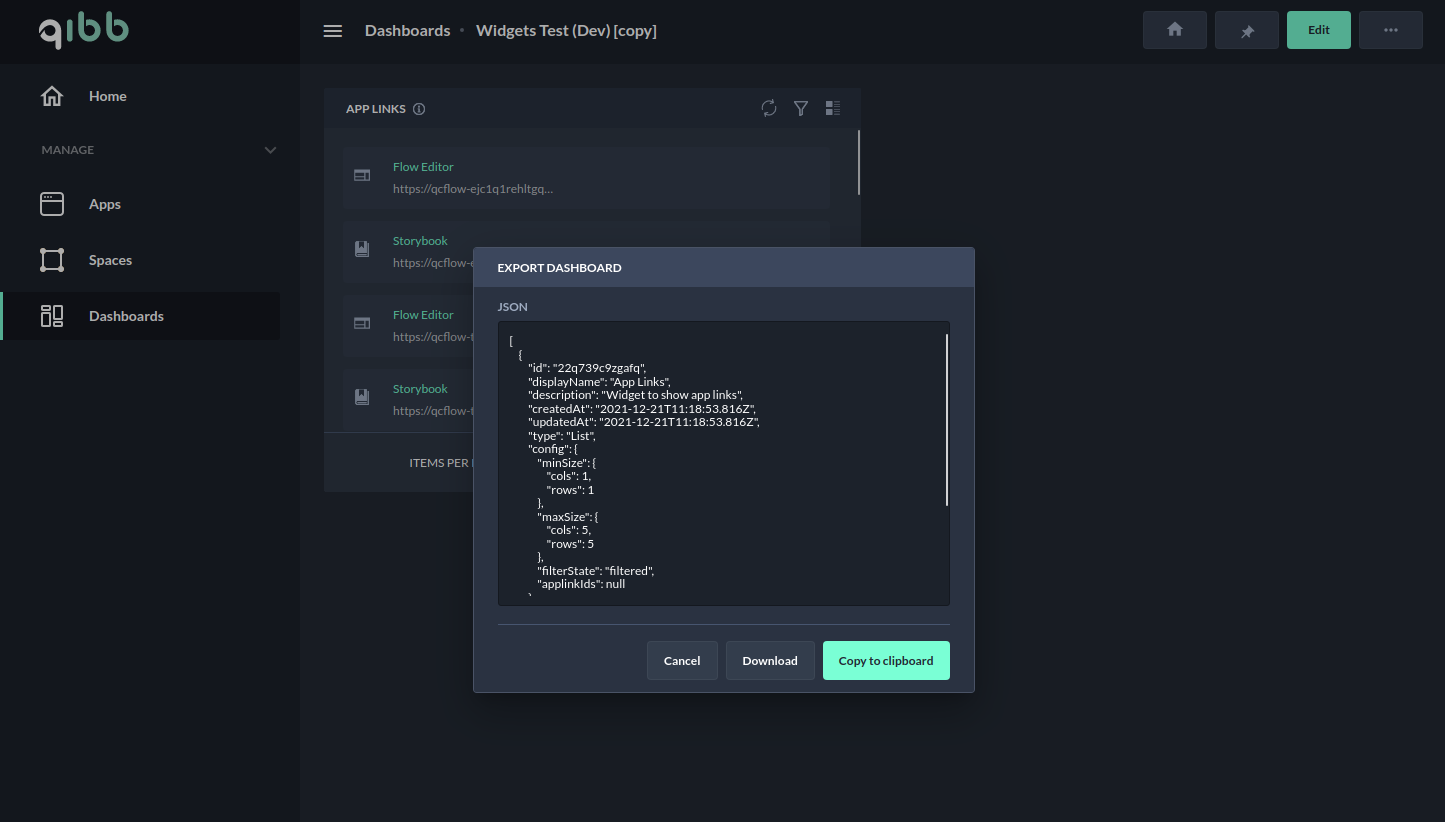
Exporting a dashboard - Copy to clipboard
Importing a dashboard
-
Navigate to a dashboard.
-
Select the Meatball Menu in the top right corner.
-
Choose Import from the dropdown.
-
Paste the JSON file that was previously copied to the clipboard by the Export action.
-
If a file should be imported from a storage location, use the Select a file to import button and select the file that was downloaded when exporting a dashboard.
The text field will then be filled with this JSON file.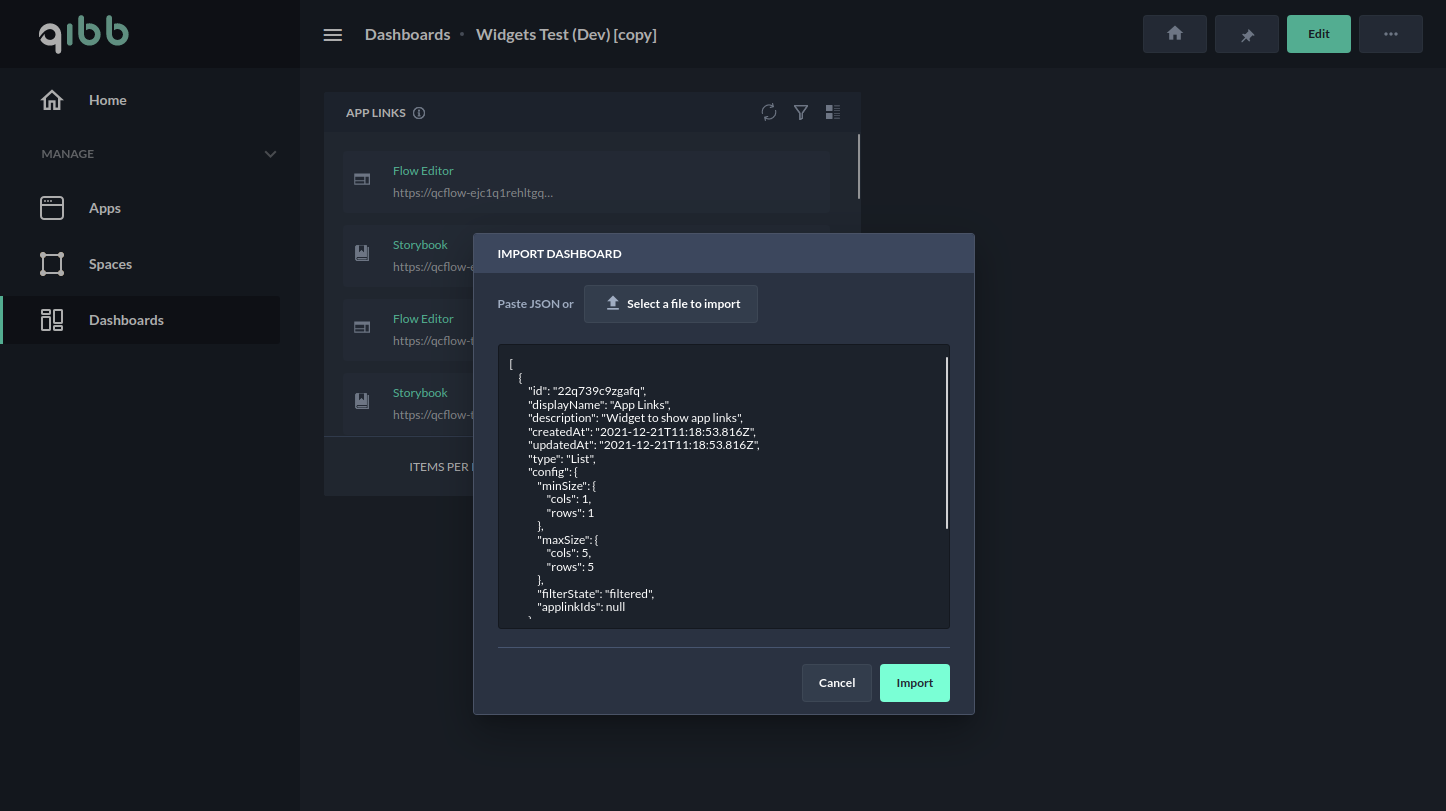
-
Click on Confirm to import a dashboard.