

qibb’s Jobs Management provides monitoring insights that reveal the lifecycle, status, and execution history of jobs processed by your flows. When Job Management is enabled with Checkpoint Nodes, you can use the qibb Portal to browse jobs, inspect checkpoint transitions, review job events and metadata, and identify jobs that require attention.
Learn about all Job Management capabilities here: Add job management capabilities to your flow with checkpoints
Use Job Monitoring to understand where a job currently is, what happened during processing, and whether manual intervention is needed.
Before you begin
Job Monitoring requires Job Management capabilities to be added to your flow. To make jobs visible and manageable in the qibb Portal, place Checkpoint Nodes at meaningful stages of your flow, such as the start, intermediate processing steps, wait points, success paths, and failure paths.
For setup instructions, see Add job management capabilities to your flow with checkpoints
What you can monitor
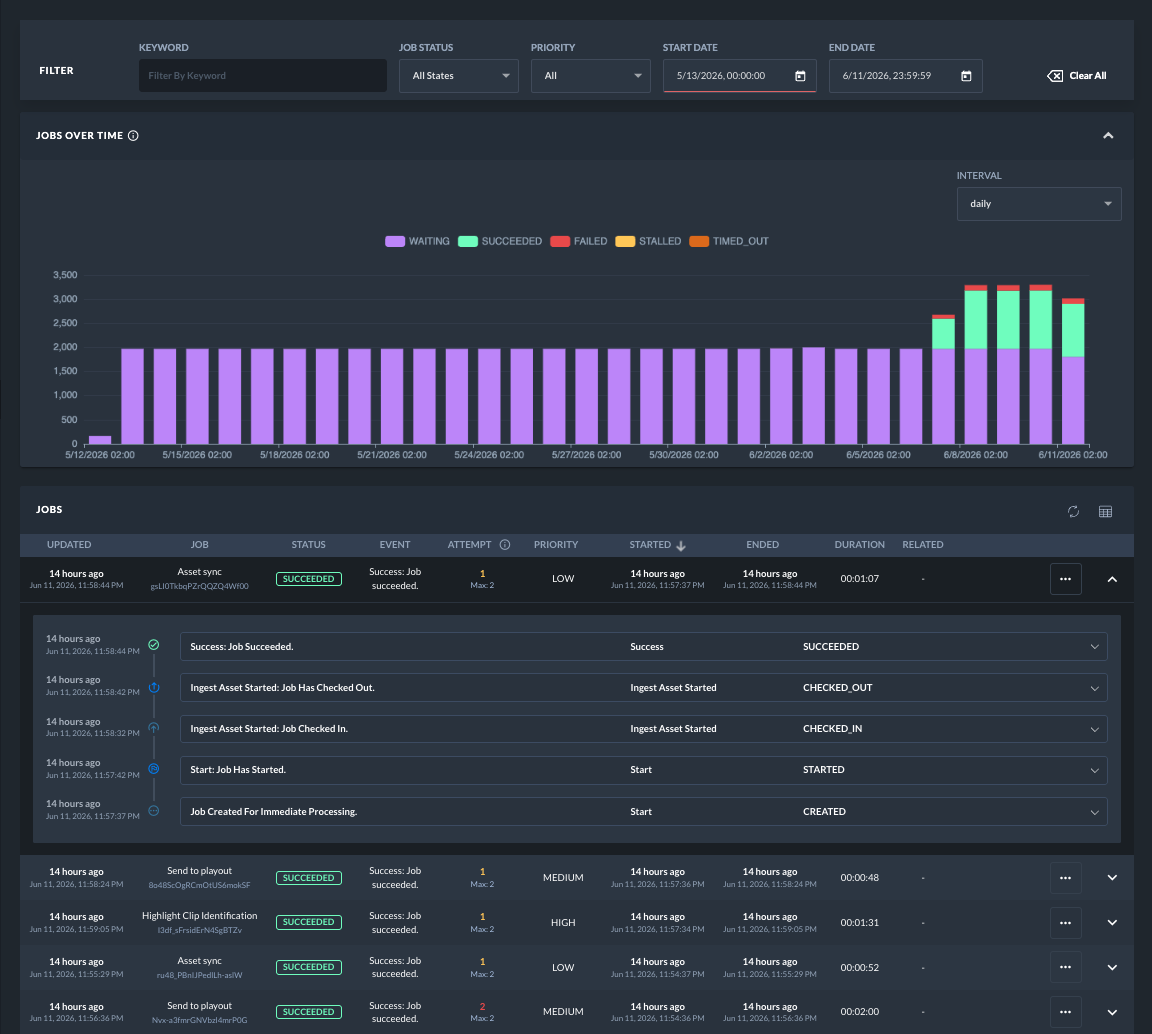
In the qibb Portal, jobs can be monitored at app level. The Jobs view helps you track the current state of each job and inspect information that is useful for operational troubleshooting and auditing.
You can monitor:
-
the current job status
-
the checkpoint where the job is currently located
-
job descriptions and metadata
-
creation and update timestamps
-
checkpoint transitions
-
event history
-
retry attempts
-
waiting, failed, cancelled, stalled, or completed jobs
This makes it easier to identify processing delays, failed executions, jobs waiting for approval, and jobs that need to be retried or cancelled.
Job statuses
A job status indicates the current processing state of a job. Depending on how your flow is designed, jobs can move through states such as pending, running, waiting, succeeded, failed, cancelled, or stalled.
Common cases include:
-
Pending or running jobs are currently queued or being processed.
-
Waiting jobs are held at a Wait Checkpoint until they are released.
-
Failed jobs reached a Fail Checkpoint, timed out, or exceeded retry handling.
-
Stalled jobs were detected as running for too long and may require review.
-
Succeeded jobs reached a Success Checkpoint.
-
Cancelled jobs were stopped manually or through a control command.
Search and filter jobs
Use search and filters to quickly locate jobs in the Portal. This is especially useful when working with high-volume flows or when you need to investigate a specific customer, asset, external system, or business process.
You can search and filter jobs by information such as:
-
keyword
-
job status
-
priority
-
start date and end date
-
job metadata
-
external IDs or other custom metadata fields
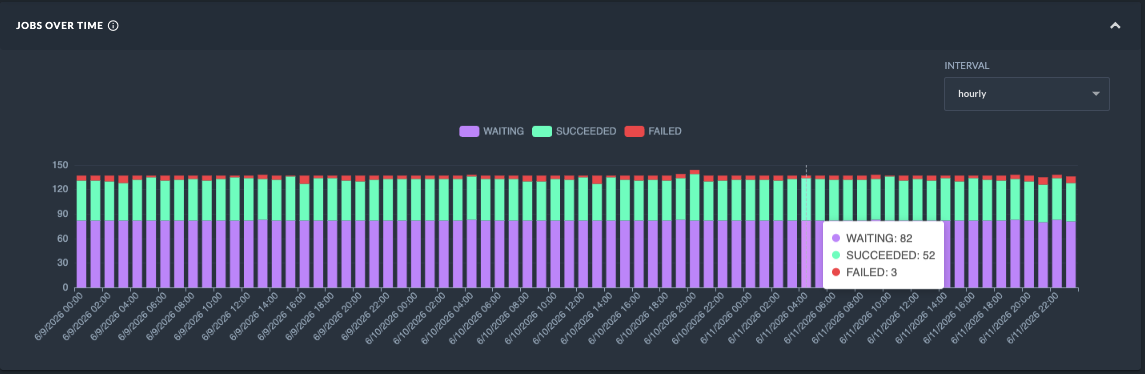
After selecting a date range, the Jobs over time chart shows job activity by interval and status. Use it to identify spikes, failures, waiting jobs, and processing trends.
To improve searchability, enrich jobs with relevant metadata when designing your flow. Standardized metadata fields, such as owner, asset, and external identifiers, can make it easier to find jobs related to external systems or business objects.
Inspect job events
Each job contains an event history that records important lifecycle transitions and actions. Job events help you understand what happened to a job and when it happened.
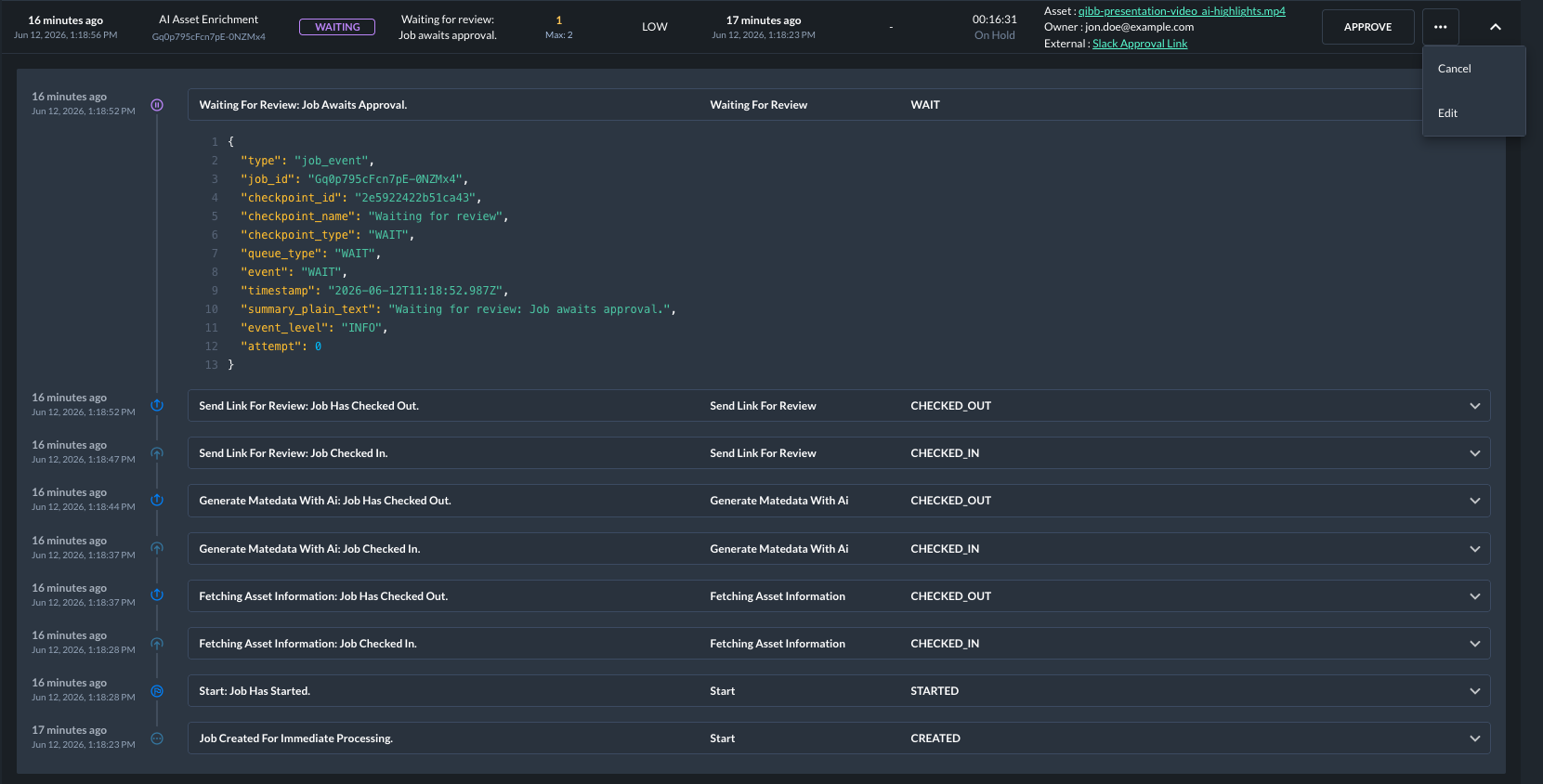
Events can include transitions such as:
-
job created
-
job started
-
checkpoint reached
-
job entered a wait state
-
job approved
-
job scheduled for retry
-
job succeeded
-
job failed
-
job cancelled
Each event can include details such as the timestamp, job ID, checkpoint information, job state, queue information, summary, and retry attempt. Depending on the configured event data storage level, events may also include a snapshot of the message at the time the event was created.
Monitor jobs that need attention
Job Monitoring is especially useful for operational follow-up. Review jobs that are not progressing as expected or that require manual action.
Pay attention to:
-
Failed jobs, which may need investigation or a manual retry.
-
Waiting jobs, which may require approval before processing can continue.
-
Stalled jobs, which were detected as running for too long, or not continued due to app interruptions and crashes.
-
Scheduled jobs, which are waiting for their configured execution time.
-
Cancelled jobs, which may indicate manual intervention or process interruption.
From the Portal, supported job actions can include approving waiting jobs, retrying failed jobs, cancelling running or pending jobs, deleting jobs, or editing supported job properties.
Troubleshooting with Job Monitoring
When investigating an issue, start with the job status and current checkpoint. Then open the job details and review the event history to understand the path the job has taken through the flow.
A typical investigation can include:
-
Find the affected job by status, search term, or metadata.
-
Check the current checkpoint and job state.
-
Review the event history to identify the last successful transition.
-
Inspect metadata and event summaries for context.
-
Retry, approve, cancel, or delete the job if an action is required.
-
Update the flow or checkpoint configuration if the issue points to a recurring processing problem.