Skip table of contents

How to reset your password with "Forgot Password" option

STANDARD PREMIUM ULTIMATE

This guide describes how to reset a password for local user accounts in our system using the “Forgot Password?” feature on the sign-in screen. It covers two primary scenarios:

  1. You forgot your password and need to create a new one.

  2. You are a new user and an admin has created your account. You’ll use the same process to set your password for the first time.

This guide is only applicable for local user accounts

This process applies only to local user accounts that are managed directly in the system. Accounts linked via external SSO providers (e.g., Microsoft Entra ID, Google Workspace, Okta etc.) must use those provider’s password/identity management and cannot be reset here.

Step-by-Step Reset Instructions

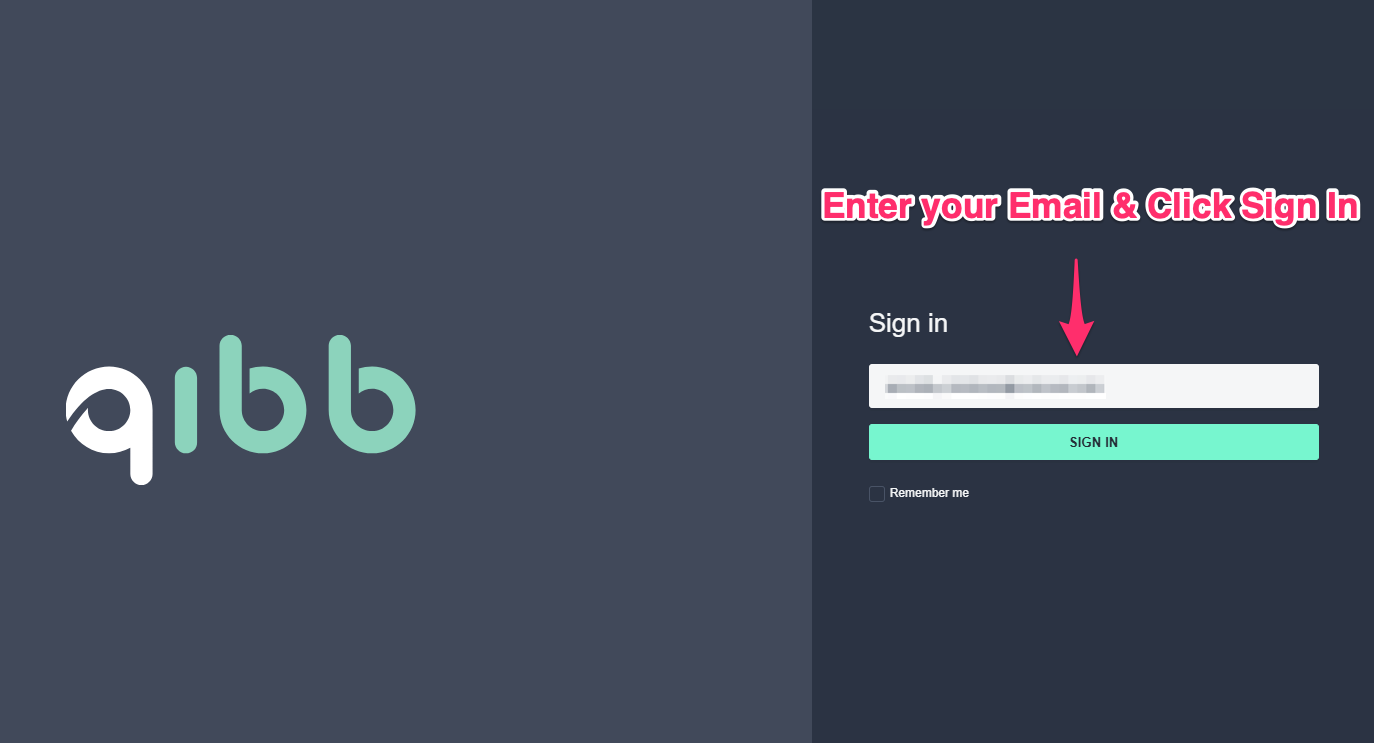
  1. Open the Sign-In Screen

    • Navigate to qibb’s portal page (e.g., https://portal.****.qibb.com). It will redirect you automatically to the sign-in page (e.g., https://auth.****.qibb.com/...)

  2. Enter your username/email

    • Click Sign In

1-open-sign-in-screen.png

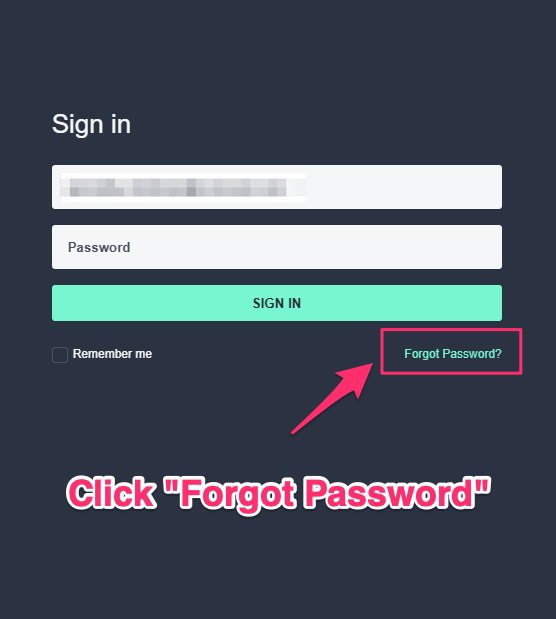
  1. Click “Forgot Password?” below the password field

2-click-forgot-password.png

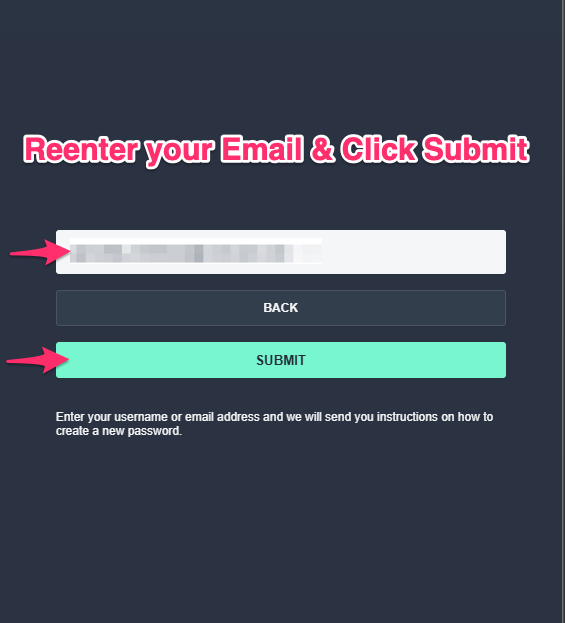
  1. Fill-out the Forgot Password Form

  • Enter your account's email address in the form.

  • Click Submit.

You will receive an email with instructions shortly after.

3-enter-password-reset-form.png
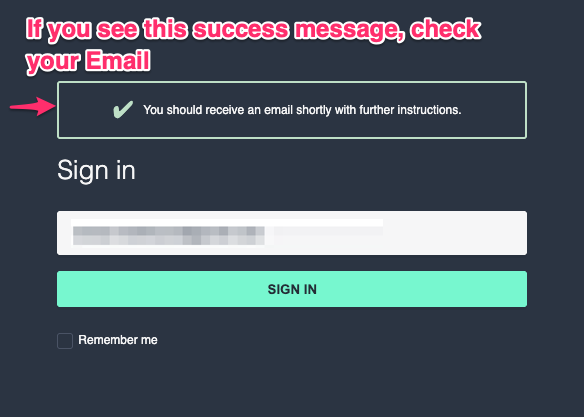
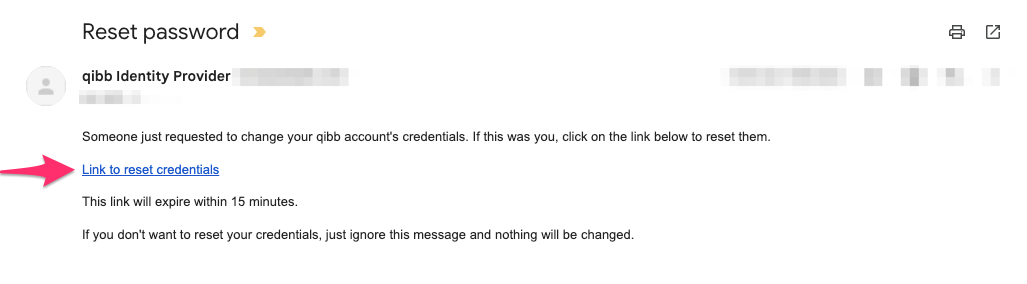
  1. Check Your Email

  • You will receive an email with a password reset link from the system.

  • If you don’t see it in your inbox within a few minutes, check your spam/junk folder.

4-check-your-email.png

  1. Open the Reset Link

    • Click the link in the email — this opens a secure page to set a new password (see next step).

password-reset-email.png

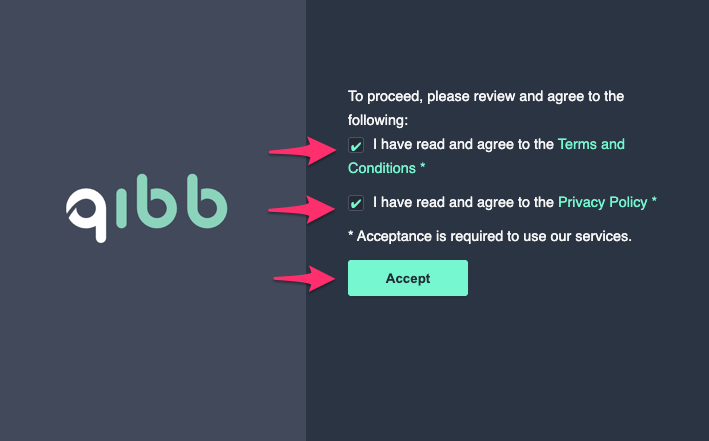
After opening the link, you may need to accept the Terms and Conditions or other data first before accessing the Password Reset Form.
accept-terms-2.png

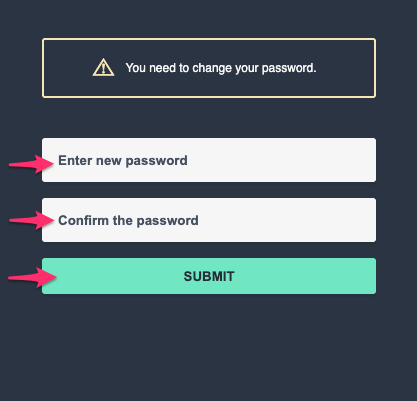
  1. Enter Your New Password

    • Type your new password.

    • Confirm the password by entering it a second time.

    • Click Submit.

You can now use your username/email and new password to sign in.

set-new-password.png

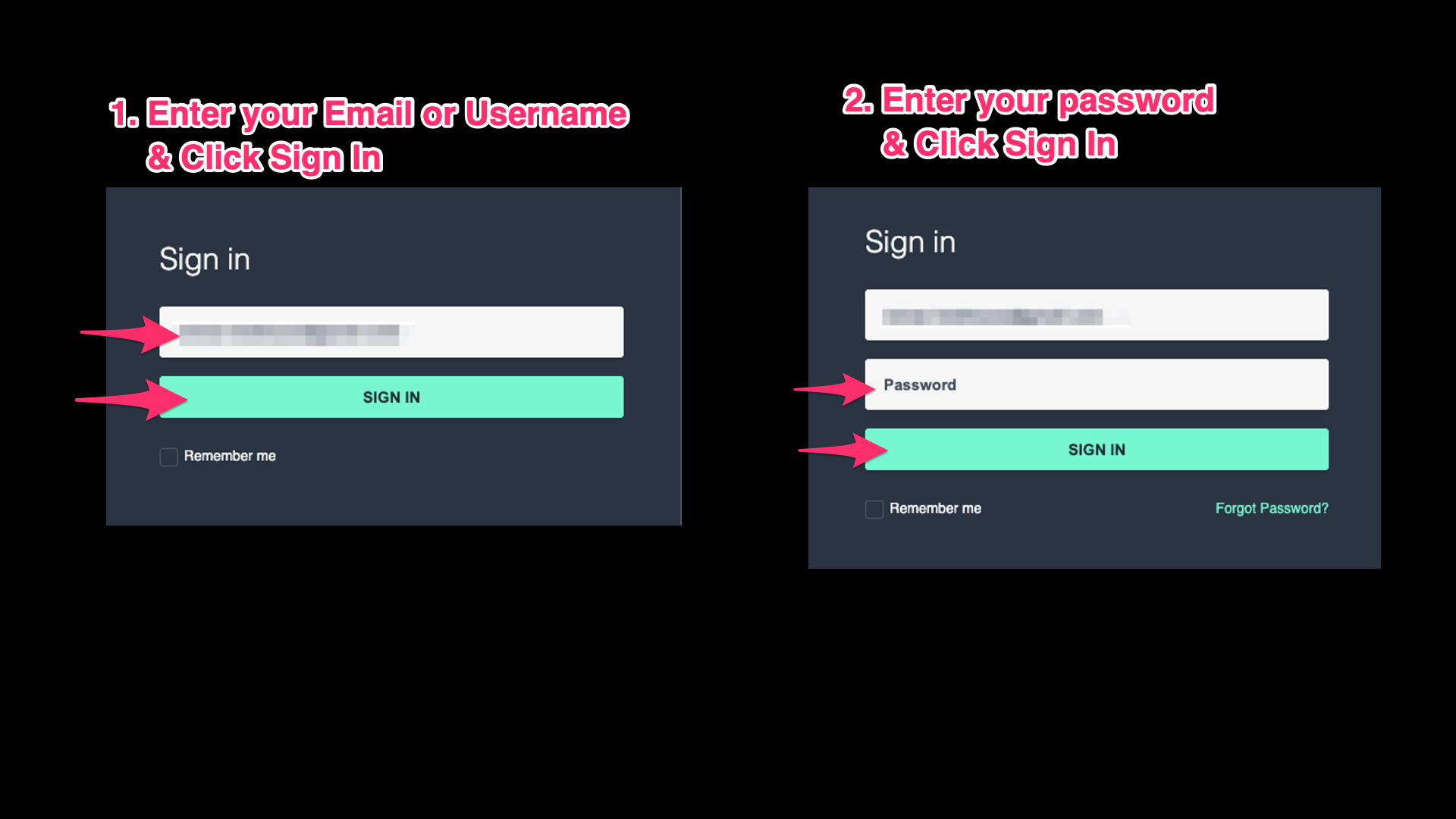
  1. Sign in with your new password

  • You will be directed back to the sign-in screen after setting your new password. Otherwise, in case of any issues, navigate directly to the qibb’s portal page (e.g., https://portal.****.qibb.com).

  • Enter your username/email and new password.

  • Click Sign In.

You are now logged in to qibb.

final-sign-in.png

JavaScript errors detected

Please note, these errors can depend on your browser setup.

If this problem persists, please contact our support.