

premium ULTIMATE
An app deployment can be rolled back to a previous revision. This restores the deployed app version and the app container configuration from the selected revision.
Rollback is available from the app page action menu when the app deployment has at least one revision after the initial deployment, for example after an app upgrade.
Rolling Back an App Deployment from the App Overview
-
Navigate to Apps.
-
Click on the app that deployment should be rolled back.
-
Open the Meatballs Action Menu in the top-right corner of the app page.
-
Select Rollback from the action menu.
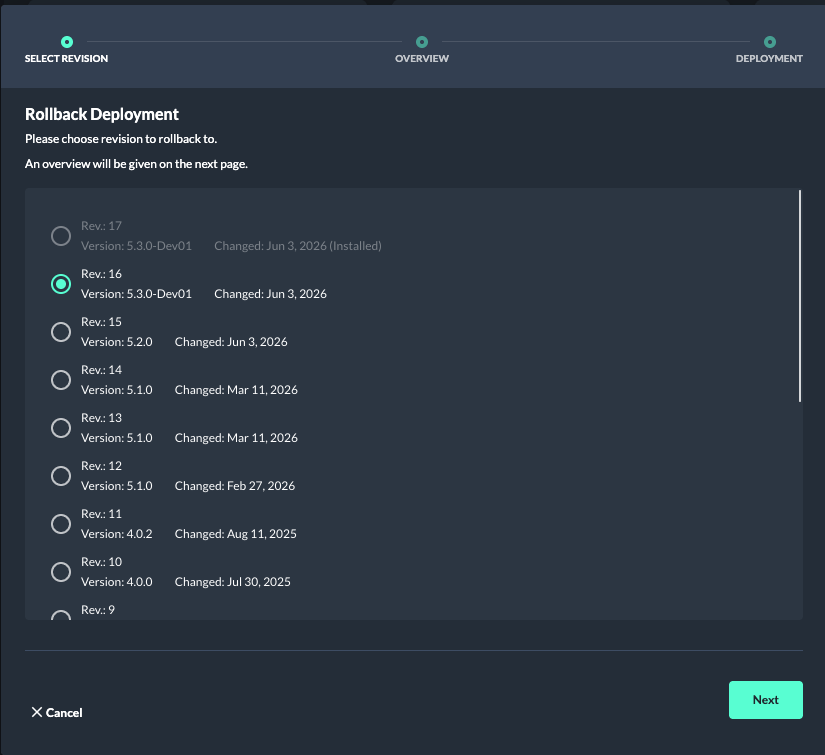
Selecting a Revision
-
The rollback dialog opens with the Select revision step.
-
Select the revision that you want to roll back to.
The currently installed revision is shown in the list, but rollback should be performed to a previous revision.
-
Click Next.
Reviewing the Rollback
-
The second step shows an overview of the selected rollback target.
-
Review the displayed values.
The values are read-only and show the app version and app container configuration that will be restored.
-
Confirm the rollback to start the process.
Common steps
-
Wait until the rollback process has finished.
-
Verify that the app deployment is running with the expected app version and configuration.
-
Test the affected flows to confirm that the rollback resolved the issue.
Rollback can be useful when a faulty configuration was applied during a previous upgrade, or when an incompatibility or issue between a flow and an app version was identified that did not exist in an earlier version.
Note: Rollbacks between major app release versions are not supported and may fail. Inspect the release notes of the involved app versions before performing the rollback: Flow Releases