

Standard Premium ULTIMATE
Beta Feature
This feature first shipped with Flow App v5.3.0 and is currently in BETA; it may not be fully stable. We appreciate your feedback as we improve it.
This feature will exit BETA with the upcoming Flow App v6.0.x release.
The GitOps plugin provides a direct integration into your Flow App to seamlessly synchronize your deployed flows with a remote Git repository. It ensures that the Flow App and your Git repository stay continuously aligned, operating silently in the background so you can focus on building flows.
You can interact with the plugin directly from the Flow App editor via the dedicated GitOps tab in the sidebar.
Operating modes
The GitOps plugin currently supports only one mode: PULL mode.
-
PULL Mode (Consumer): The remote Git repository serves as the source of truth. The plugin periodically fetches changes from the configured remote branch and automatically applies them to your running Flow App. If a flow is updated in the central repository, your app will automatically inherit those changes.
Configuring the connection
To connect your Flow App to an existing Git repository, open the GitOps tab in the right sidebar and expand the Configuration section.
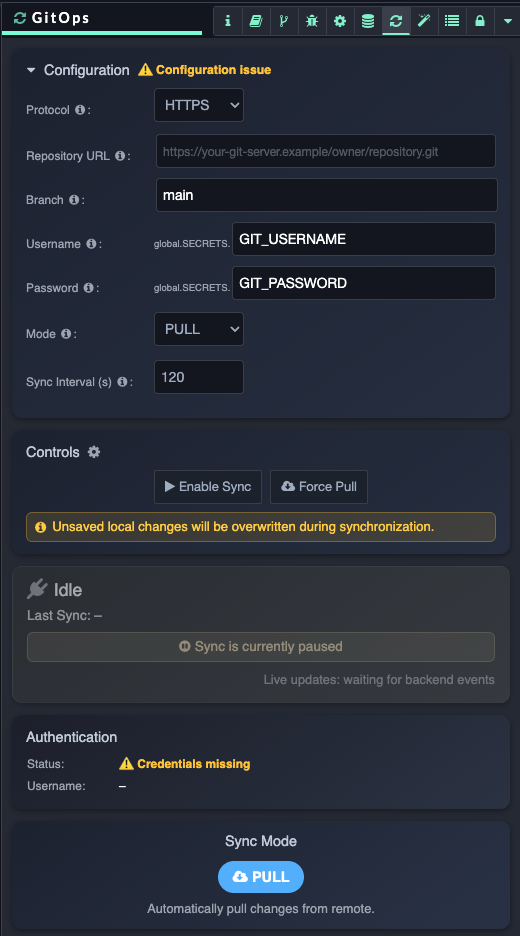
Repository details
-
Protocol: Select the method used to authenticate and connect (HTTPS or SSH).
-
Repository URL: The URL of your remote Git repository.
-
HTTPS Example:
https://gitlab.com/owner/repo.git -
SSH Example:
git@gitlab.com:owner/repo.git
-
-
Branch: The exact, case-sensitive name of the Git branch you want to track (e.g.,
main,master, orstaging). -
Sync Interval (s): How often the plugin checks for changes. The minimum allowed is
120seconds. (A random jitter of 0–60 seconds is automatically added in the background to prevent server flooding).
Authentication setup
Configure Git credentials through qibb’s Secret Manager. The GitOps plugin uses secret paths from the Flow App’s global context instead of storing plaintext passwords, access tokens, or private keys. Make sure the required Git credentials are stored as space secrets and exposed to the Flow App. For more information, see Managing secrets in your space and accessing them from your flows.
As you type in the authentication fields, an autocomplete dropdown will suggest available secret paths.
If using HTTPS:
-
Username: The secret path containing your Git account username.
-
Password: The secret path containing your Personal Access Token (PAT). Do not use your standard account password.
If using SSH:
-
Key File: The secret path containing your SSH private key.
-
Passphrase (Optional): The secret path for your SSH key's passphrase. Leave this entirely blank if your private key is unencrypted.
Once you click Save, the plugin will immediately validate your configuration and attempt its first synchronization.
Once the plugin is successfully configured and synchronized, you should see a view similar to the following:
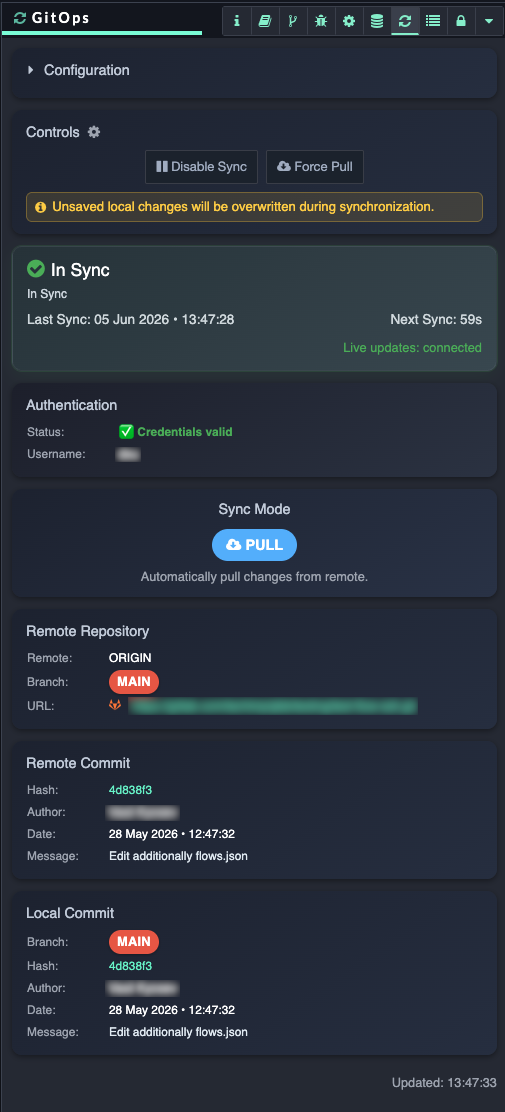
Managing your sync state
-
Initial setup: Synchronization may be paused by default when configuring the plugin for the first time. After saving your details, remember to click Resume Sync to activate it.
-
Modifying plugin settings: To modify your configuration settings, you must first pause the plugin. If the plugin is currently active and syncing, the configuration settings will be locked to prevent changes.
Using the sidebar controls
Once configured, the GitOps plugin sidebar acts as a live dashboard for your repository's health.
Sync controls
Under the Controls card, you have manual override capabilities:
-
Force Pull: Immediately triggers a synchronization, ignoring the countdown timer.
-
Pause / Resume Sync: Temporarily halts synchronization.
Commit history
The sidebar displays the latest snapshot of both the remote repository and the local app:
-
Hash: The Git commit hash (clickable, linking directly to GitHub/GitLab if applicable).
-
Author & Date: Who made the last change and when.
-
Message: The commit message. Click the arrow (
>) to expand the full commit body.
Monitoring synchronization status
Because synchronization happens automatically in the background, the UI uses a connection to stream real-time events from the backend to your browser. You can monitor the health of this connection at the bottom of the top Status Card under Live updates:
-
Live updates: connected: The connection is healthy. All displayed information (commits, sync status, etc.) is up-to-date.
-
Live updates: waiting for backend events: The Flow App editor has just loaded and is waiting for its first status payload. The state update may be delayed; it typically happens after a backend event occurs, such as a repository sync or a configuration update.
-
Live updates: connected, sync paused: The connection is healthy, but background sync has been manually paused by the user.
-
Live updates: stale or disconnected: The UI has not received an update from the backend in an unusually long time (more than 2x the normal sync interval). A banner will warn that your UI might be out of date. Check your server load.
-
Live updates: browser offline: The connection with the backend has been lost.
Automated dependency and node installation
When the plugin is running in PULL mode, it doesn't just pull the changes in the flows (flow.json), but also analyzes the repository to ensure your Flow App instance has all the necessary nodes to run that flow.
How it works
When new updates are pulled from your Git branch, the plugin performs an automatic safety check before applying the changes to your running workspace:
-
package.jsonDependencies: The plugin checks your repository'spackage.jsonagainst what is currently installed in the Flow App. If the remote author added a new node package, the plugin will automatically install it. -
Missing Flow Nodes: The plugin scans the incoming flow for any node types that do not exist in your current environment.
-
Catalog Mapping: It cross-references unknown nodes against a system catalog (
.config.nodes.json) to find which NPM packages those nodes belong to. -
Auto-Installation: If it successfully maps a missing node to a known package, the plugin downloads and installs that package directly into the live workspace.
As the plugin recovers missing nodes and installs packages, the Status bar will display a wrench icon (recovery) with updates regarding the installation progress.
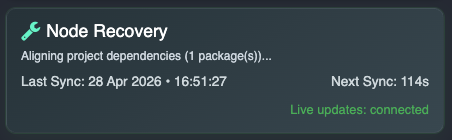
Limitations and considerations
While automatic recovery is powerful, there are a few important limitations to keep in mind:
-
PULL mode only: This automatic dependency resolution only happens when consuming changes via PULL mode.
-
Third-party catalog mapping: The plugin relies on qibb catalog mapping to identify which package provides an unknown node. If an incoming flow uses a completely custom, unpublished, or highly obscure node type that is not in the system catalog, the plugin cannot auto-install it.
-
Version conflicts: The plugin attempts to install packages based on the
package.jsonrequirements. However, if an incoming package requires an entirely different version of Node.js or fundamentally conflicts with a pre-existing system dependency, the installation might fail. -
Failed recoveries: If automatic installation fails (e.g., due to an unreachable generic NPM registry, or an unmapped node), the sync status will eventually report that "Recovery retried multiple times and still failed." The missing nodes will appear as "Unknown" (dotted outlines) in your flow editor until manually resolved.
-
Local nodes not auto-added: The plugin does not automatically inject your manually installed local nodes into your
package.json.
Best practices: Managing dependencies
When your GitOps plugin is operating in PULL mode, it is incredibly powerful at automatically downloading and restoring missing custom nodes from the remote Git repository into your Flow App.
However, this automatic recovery mechanism entirely relies on the package.json file inside your Git repository. For the plugin to know which package and which version to install, the author of the flow must explicitly add their third-party nodes to the flow’s Project Dependencies.
How to properly add dependencies
If you are building a flow and installing new palettes/nodes (e.g., iconik-nodes), simply installing them from the Node Catalog is not enough to automatically save them to Git. You must manually declare them as dependencies for your project.
Steps to add dependencies:
-
In the top-right corner of the Flow App editor, click the hamburger menu (≡) and navigate to Projects > Project Settings.
-
Select the Dependencies tab on the left.
-
You will see a list of installed node packages. If a package is installed in your Flow App instance but not yet linked to the Git project, you will see a button labeled add to project next to it.
-
Click add to project for every essential node package your flow relies upon.
(For example: If the package iconik-nodes requires clicking "add to project", ensure you click it, whereas successfully added nodes like frame-io-nodes will no longer display the button).
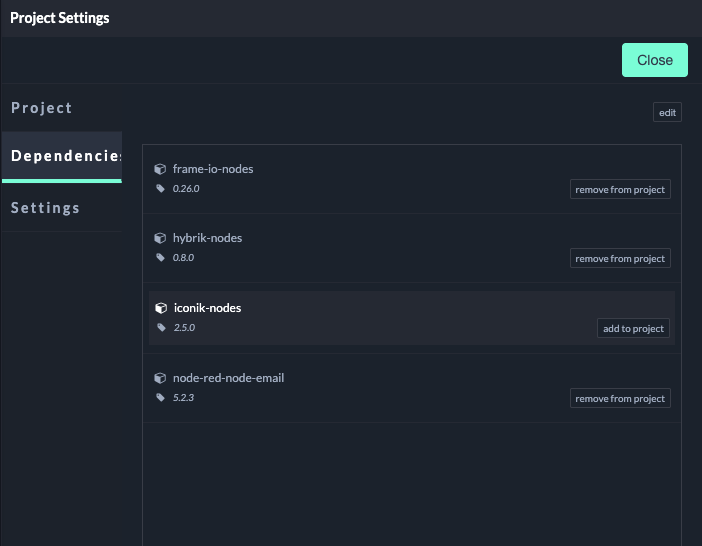
Why is this important?
When you click add to project, the Flow App writes that package and its specific version number directly into the project's package.json file.
-
The next time you push your changes to Git, that updated
package.jsontravels with the commit. -
When a secondary workspace securely PULLs that Git repository, the GitOps plugin will read that
package.json, detect the exact version requirement, and safely update the node.
If you fail to add the dependency to your Project Settings:
-
The package will not be recorded in Git.
-
When a downstream workspace PULLs the flow, the GitOps plugin has no instruction manual on how to install the node.
-
The nodes may appear "broken" (dotted outlines) as unknown node types on the receiving end.
Note
The GitOps plugin does feature an advanced fallback mechanism that tries to guess the package name from a system catalog if it's missing from package.json. However, explicitly defining the dependency in the Project Settings is the only 100% reliable way to guarantee the correct node version is recovered.
Troubleshooting and FAQ
Q: I get a "Protocol Mismatch" warning on my Repository URL.
A: If you select SSH, your URL should look like git@domain:user/repo.git. If you select HTTPS, it must start with http:// or https://. Ensure the dropdown matches your repository URL.
Q: The save button is disabled, or a field has a red border.
A: This means the value you have entered is not valid. For example, your authentication secret path might be incorrect. Ensure you are using the proper global.SECRETS.your_path_here format and that the referenced secret actually exists in your environment.
Q: My flows aren't updating, and the status shows "behind".
A: If you are in PULL mode and the plugin sees new remote commits but hasn't applied them, verify that Sync is not paused. You can also click Force Pull to instruct the plugin to fetch them immediately. If an error persists, check the Status Card reason (which will highlight the error in red with an API code or message).