

Introduction
Telestream DIVA is a comprehensive solution for managing digital content across multiple locations and operations such as broadcast, production, and archive. With features such as file-based ingest, transcoding, and delivery, as well as metadata management and automated quality control, DIVA can help you streamline your media workflow. DIVA integrates with various storage systems and supports a wide range of file formats, making it suitable for use in diverse media environments. Additionally, customizable user interfaces and dashboards allow for real-time monitoring and reporting.
For more details on supported operations, refer to DIVA | qibb Catalog.
How to get started with Telestream DIVA integration
Before you begin integrating Telestream DIVA, ensure that you have the necessary permissions for the operations.
-
To authenticate, you only need your username, password, and base URL.
-
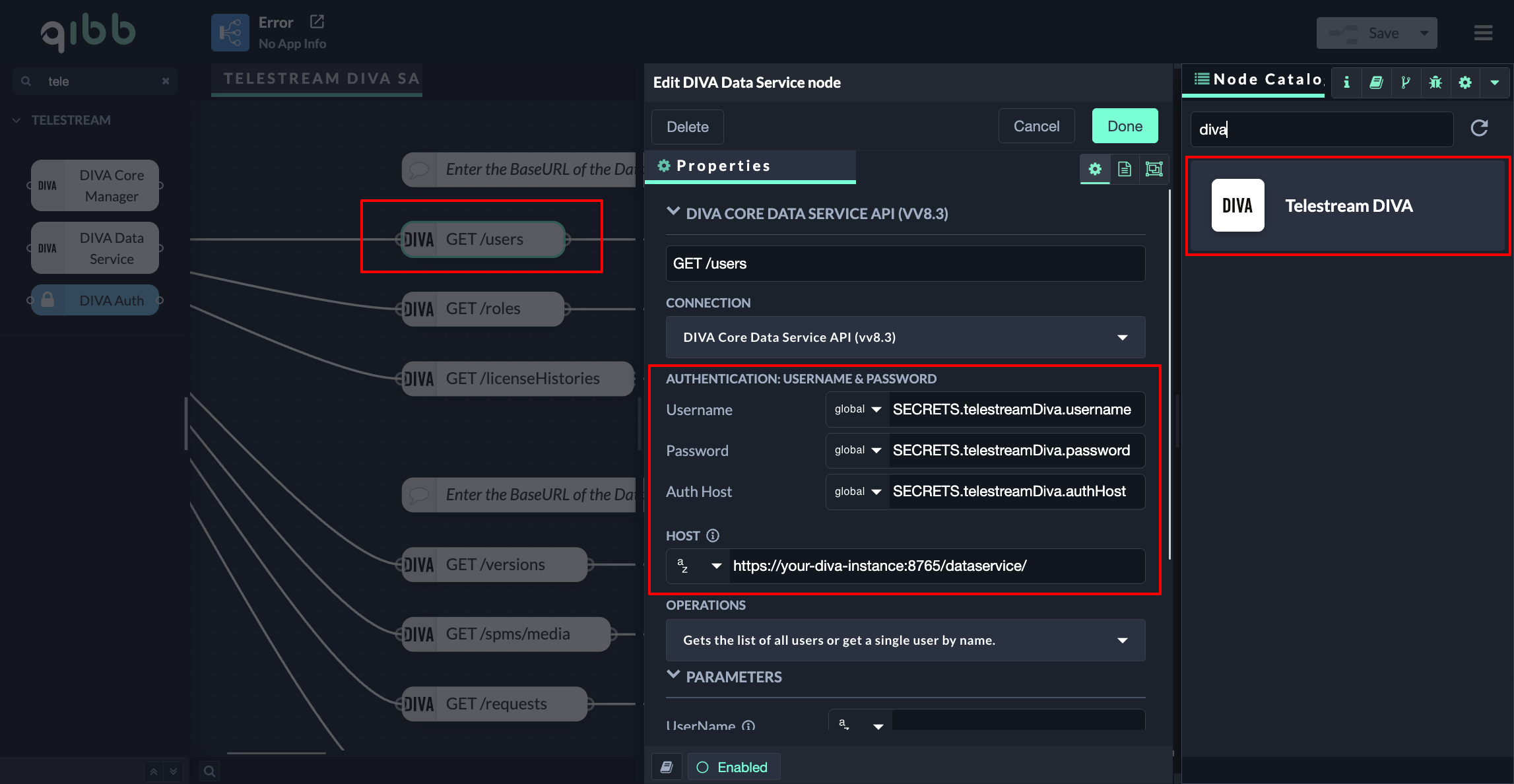
Access the qibb Workflow Editor and install the Telestream DIVA node by clicking the "+" button in the Node Catalog on the right sidebar.
-
Drag the required Telestream DIVA node from the left sidebar into your flow and connect it.
-
Open the node, expand the connection dropdown (first dropdown), and enter your username, password, and base URL in the connection settings.
-
If you are using the DIVA Data Service node, enter the Data Service Base URL in the Host field. If you are using the DIVA Core Manager node, enter the Manager Base URL in the Host field.
-
Start using the Telestream DIVA integration!
Importing flow examples of a node
Once you've successfully installed a node from the qibb catalog, you can easily import example flows that showcase how the nodes can be used. These example flows are directly accessible within the Flow Editor and are designed to guide users with helpful hints, including how to configure mandatory parameters and credentials.
Here's how to import examples:
-
In the top right corner of the Flow Editor, click on the menu icon.
-
Select Import to open the Import Dialog.
-
Click on the Examples tab.
-
Choose an example from the list.
-
Confirm your selection by clicking on the Import button.
By following these steps, you are now ready to make basic API calls using the provided examples. For further exploration of what’s possible, you can find more complex examples in the Flow Catalog.