

ULTIMATE
A disabled user can not perform any action in qibb platform until it is activated by the administration.
To disable a user the steps are as follows:
-
Navigate to the Users page.
-
Select a user whose account you want to deactivate.
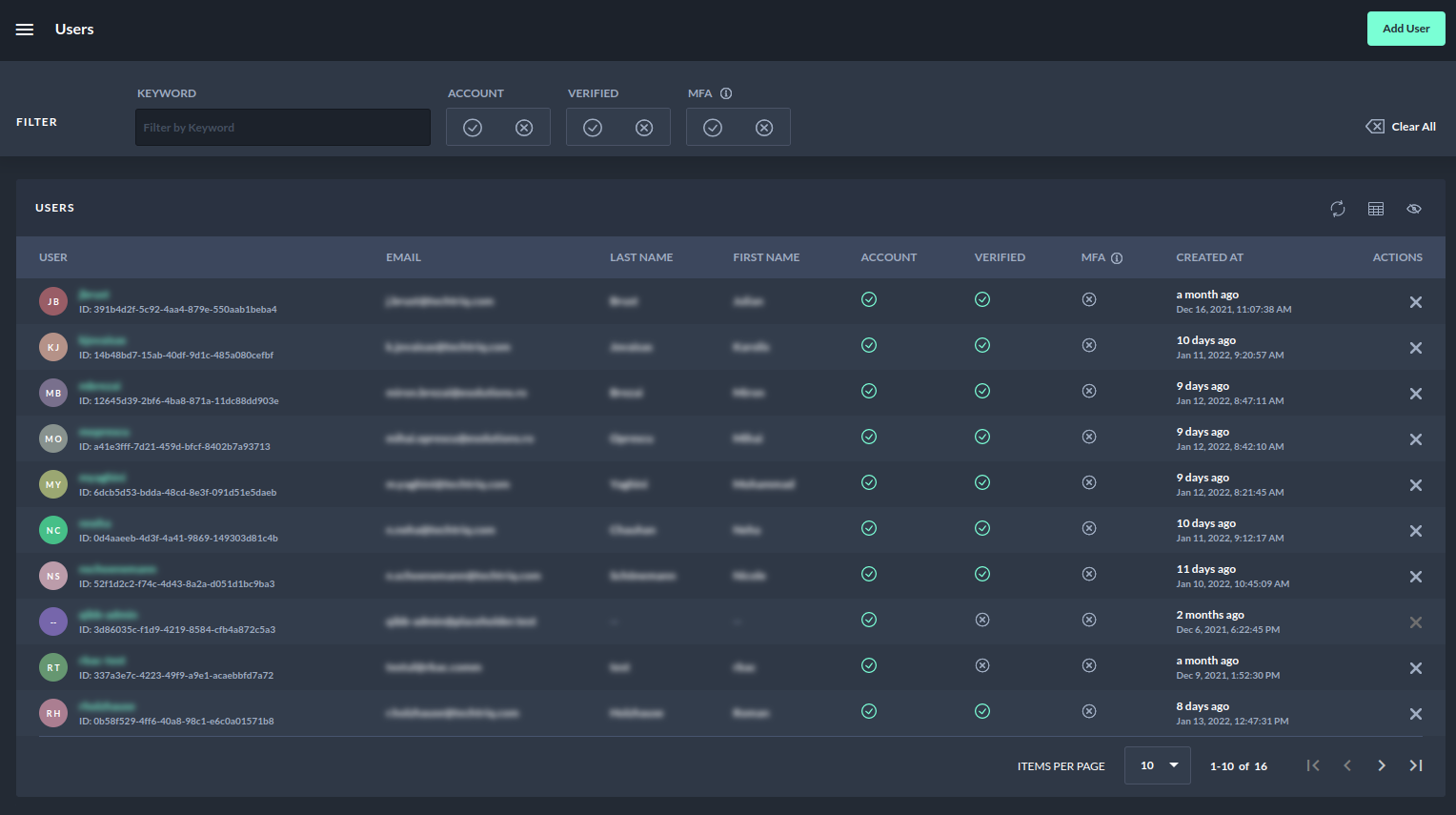
2. Navigate to the user detail page.
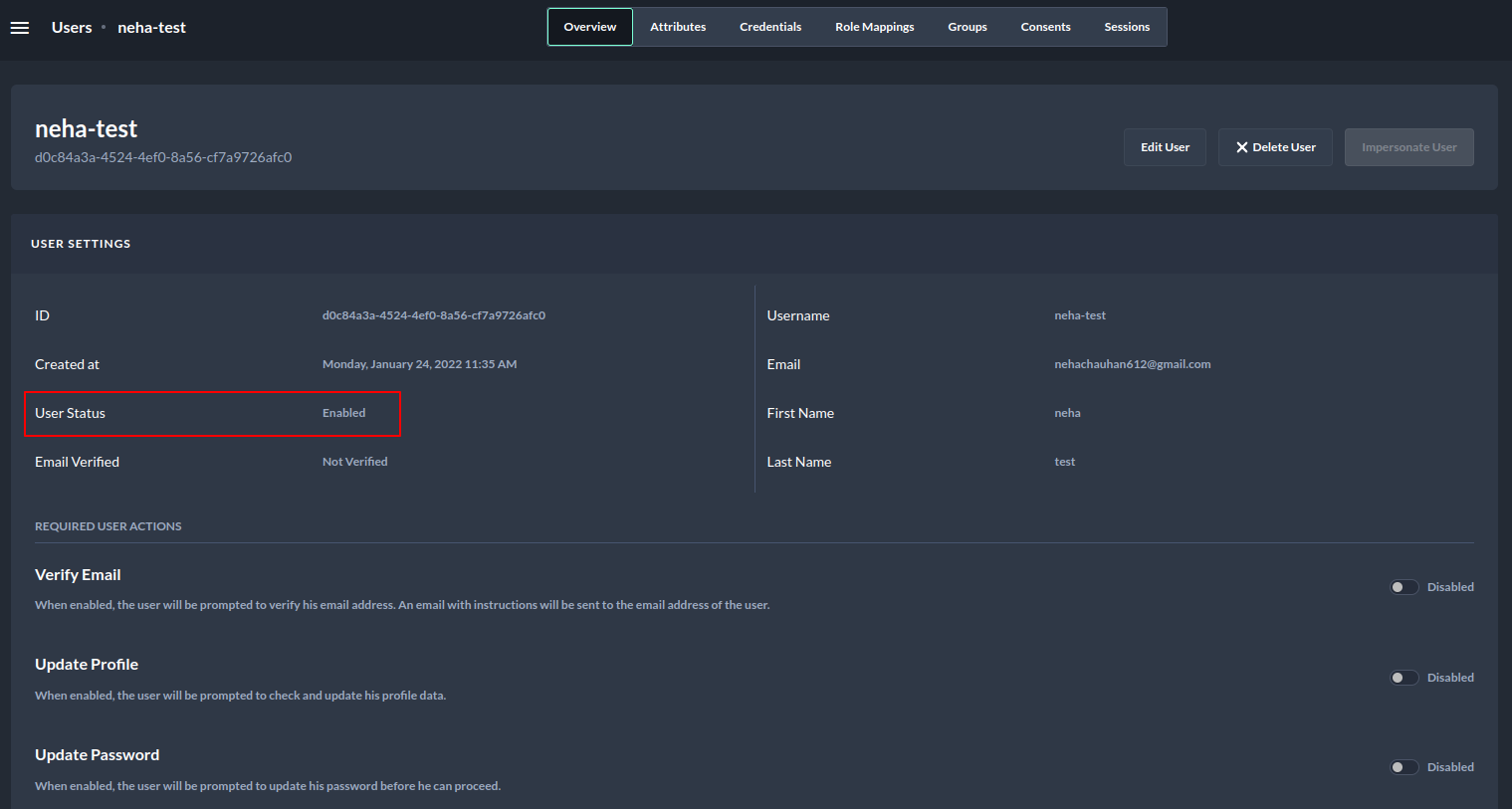
-
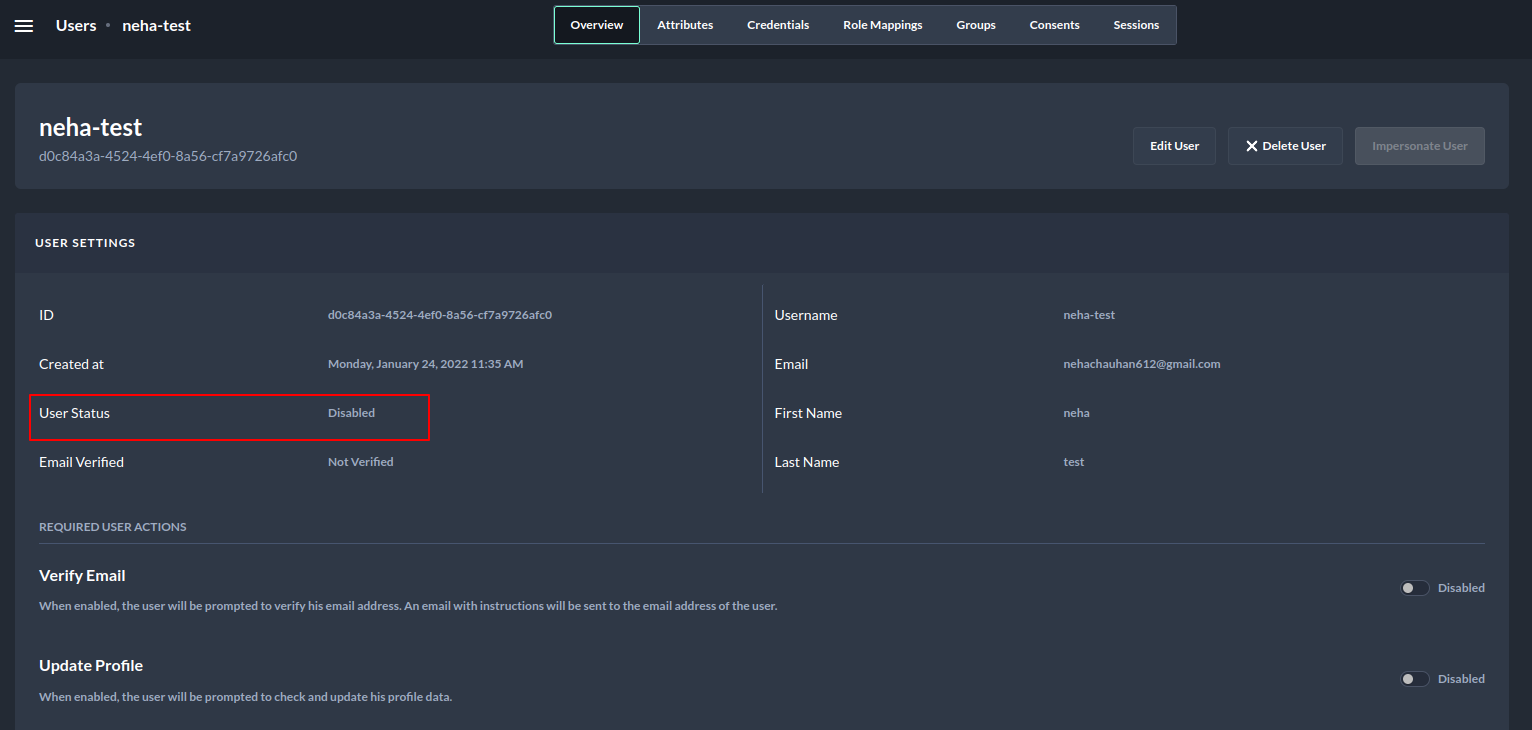
the User Settings section displays whether a user is disabled or not.
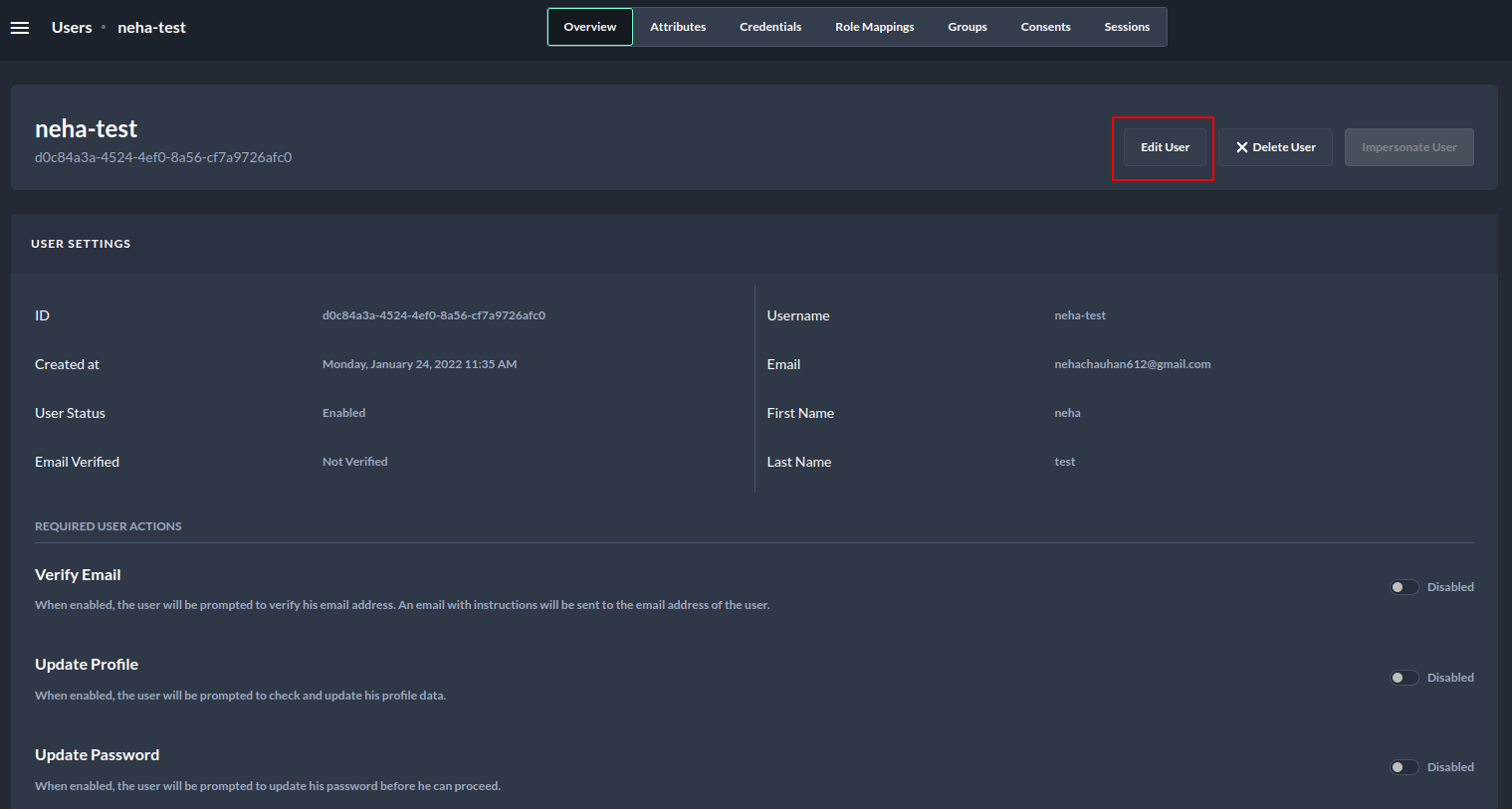
3. Select the Edit User button from the top right corner.
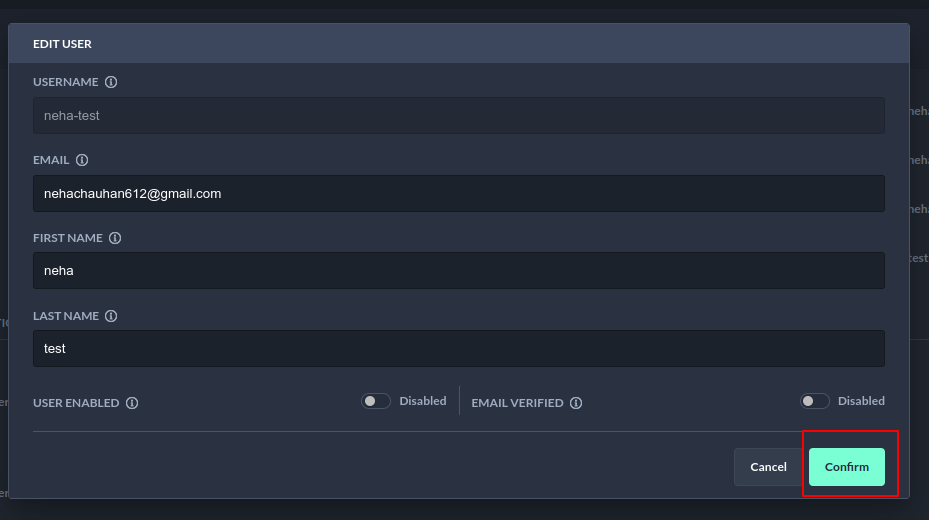
4. Toggle the User Enabled button to disable the user account.
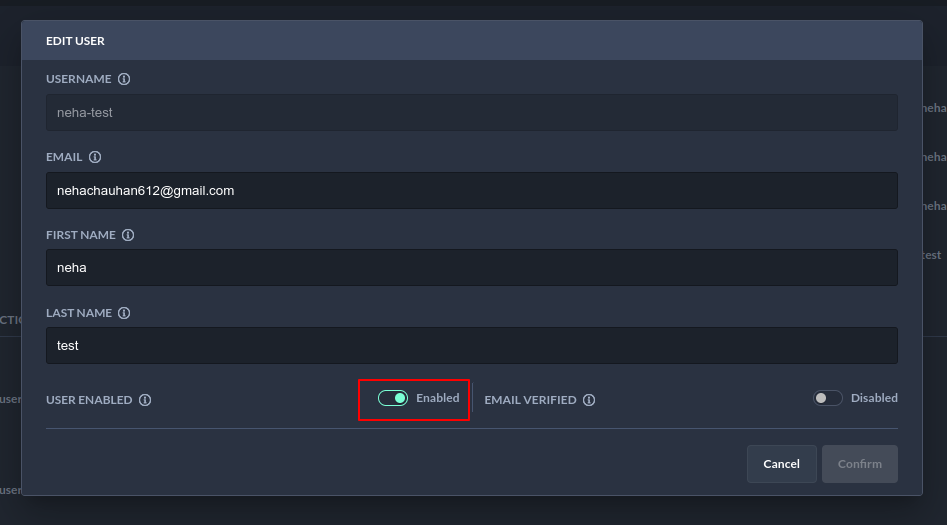
5. Select confirm button.
Finally, the view is refreshed and the user status setting is set to disabled as shown below:
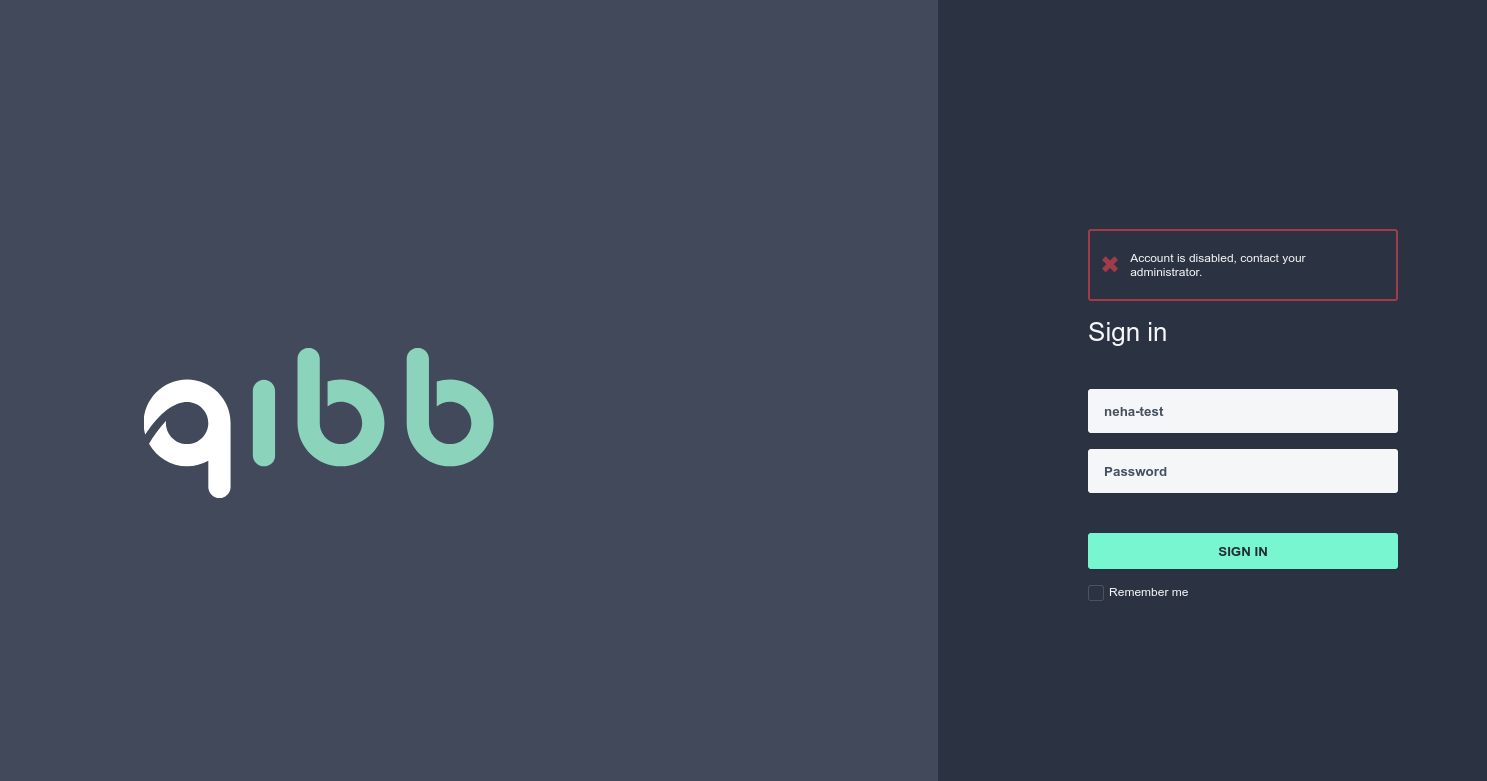
If a disabled user tries to log in to the qibb portal now, the following message is displayed:
To enable a disabled account, contact the administrator.