

ULTIMATE
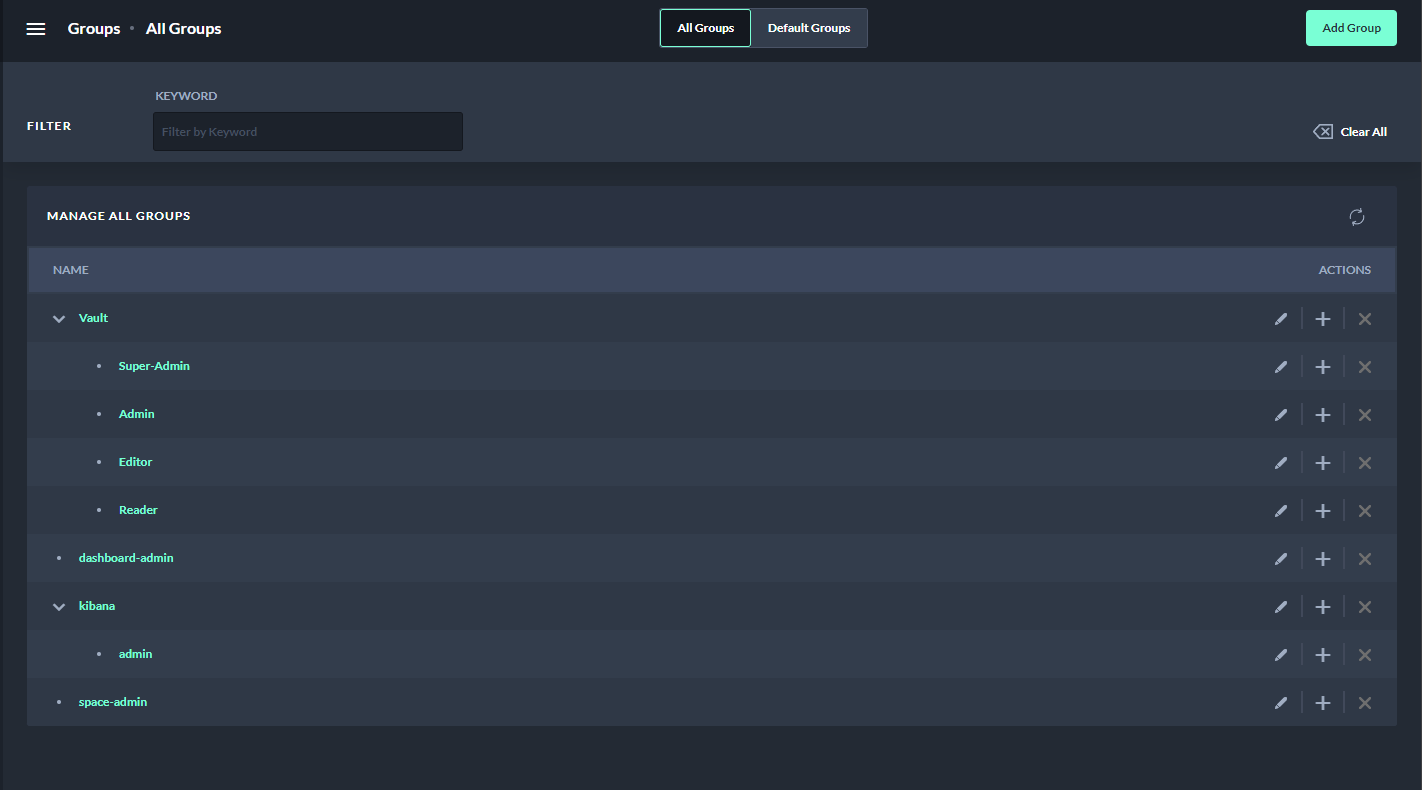
The Groups page contains a table view of all roles to which a user located in a specific area has access.
Filters
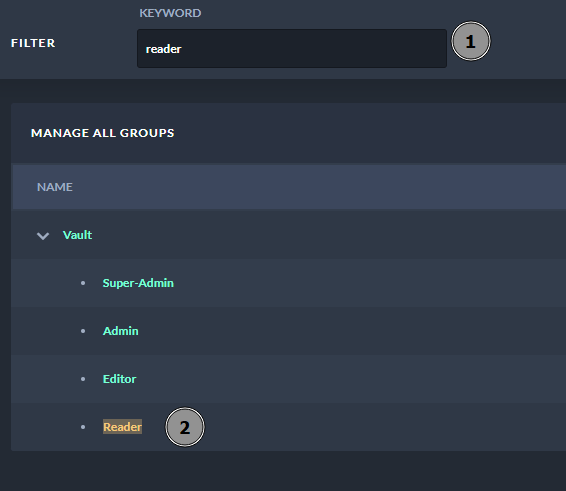
The Groups page offers the possibility to filter groups by search keyword.
-
Searching by keywords matches groups by exact keywords and displays them in the table list below, highlighting the matching word
Actions
The Groups list contains the following actions:
-
Add Group
-
Pressing “+” on the right side will open a quick setup pop-up window to create a new group under one of the selected groups.
-
By selecting "Add Group" in the upper right corner of the screen, you can create a new group and open the setup.
-
-
Delete Group
-
To delete a created group, press the button "x".
-
Another option is to open the group itself and press the “Delete Group” button.
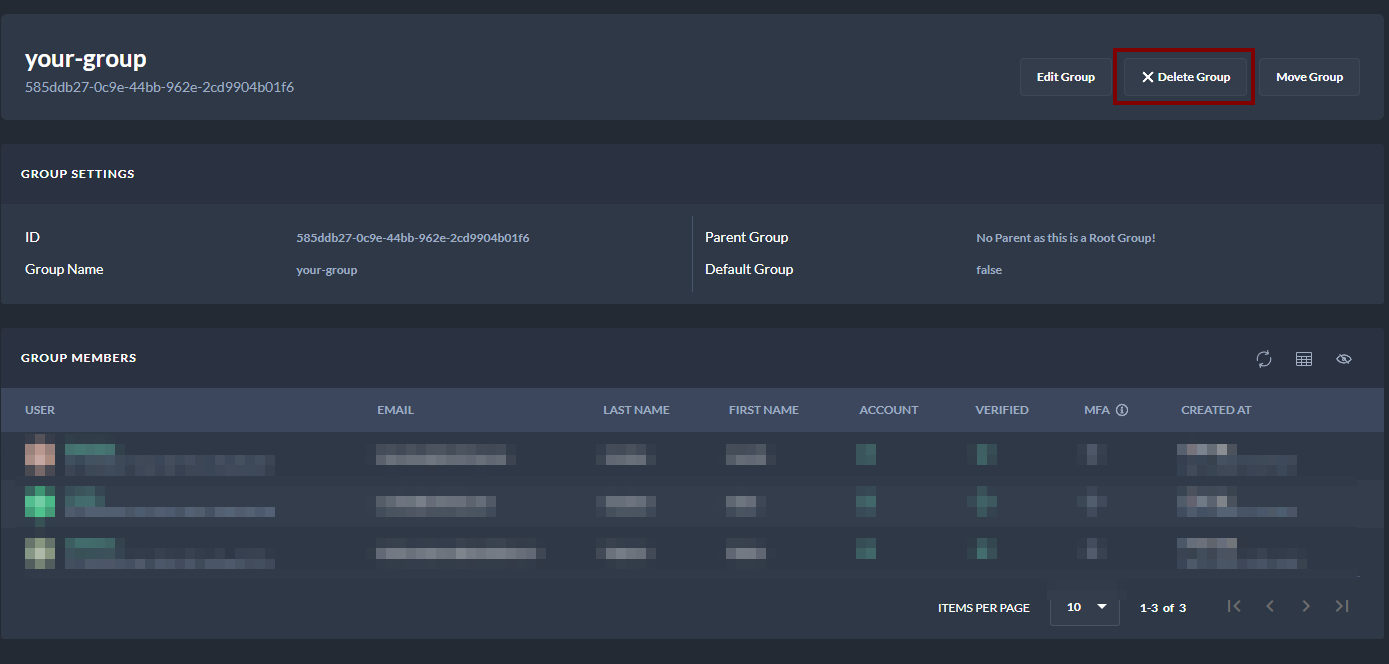
Browsing Groups - Delete Group
-
-
Edit Group
-
Press the pencil icon on the right side next to the group that should be edited. A new dialog pop-up window opens where group names can be edited.
-
Otherwise, navigate to a group and press the Edit Group button to edit the group name.
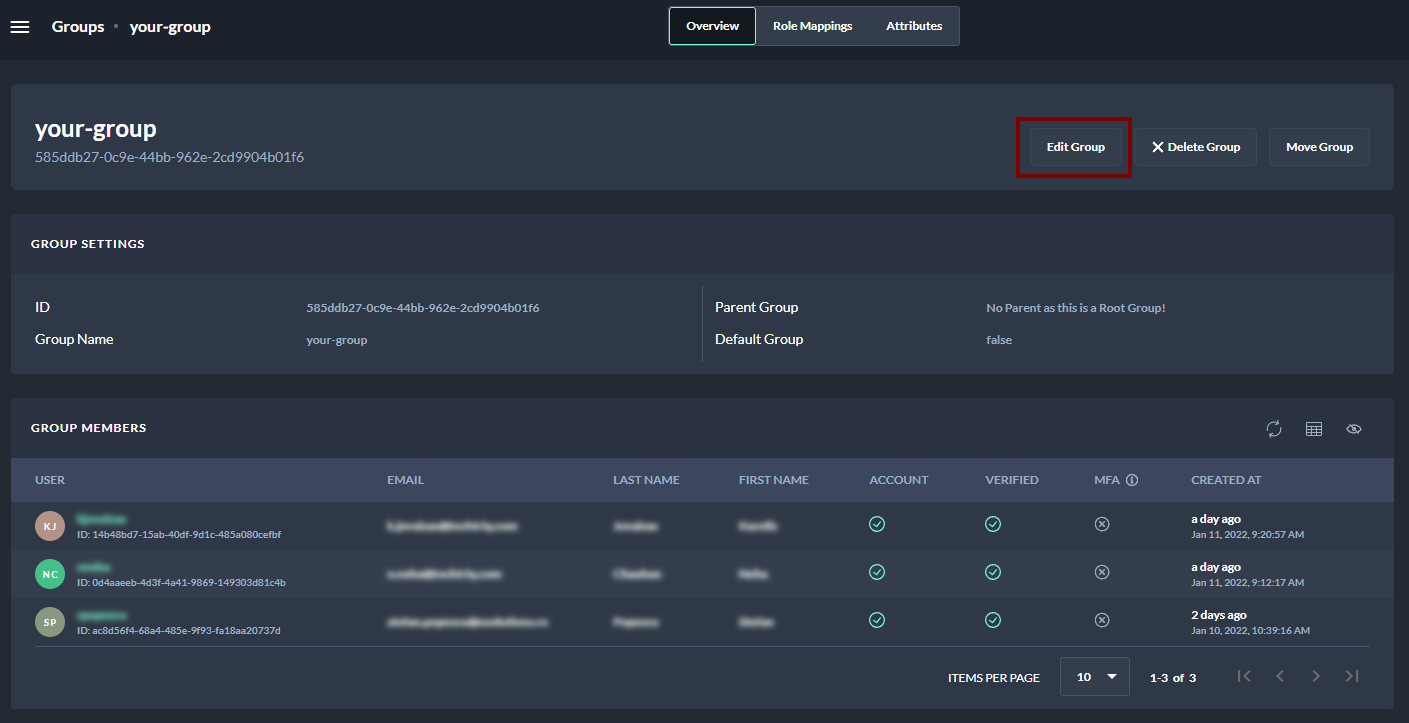
Browsing Groups - Edit Group
-
Next Steps
Now you are ready to create a group and set a group as the default