

ULTIMATE
Feature Deprecation
Please note that the Default Groups feature, was deprecated in qibb v1.43.0 and will be removed in a future release.
Functionality will be replaced by a custom configuration request via our service desk (Ultimate subscription required). Ultimate customers can request default groups configuration through a support ticket. Otherwise, default configuration will apply based on industry best practices.
Assigning a group as a default group requires the following steps:
-
Navigate to Groups.
-
Select the Default Groups tab at the top of the browser window.
-
Search and select an existing or newly created group in the list or by filter search.
-
Select the newly activated Add Selected button.
-
The new group will be moved to the right side of the Default groups table.
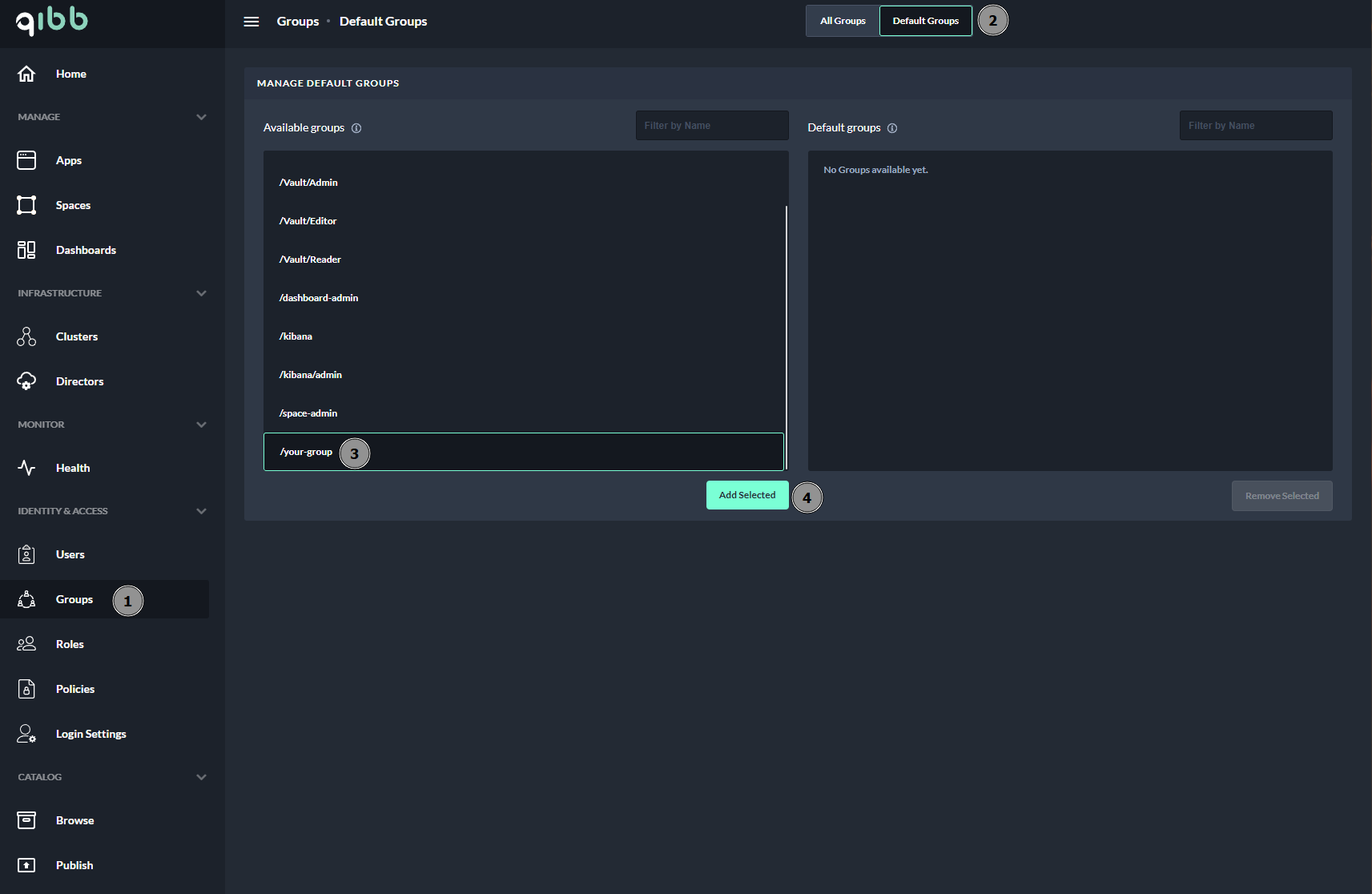
After the page has automatically refreshed, check that the group has been transferred to the default group table.
The new default group is now ready for use.
Next Steps
Now you can Move a group within a tree or to the new parent group and add a user to a group